Edit in Studio
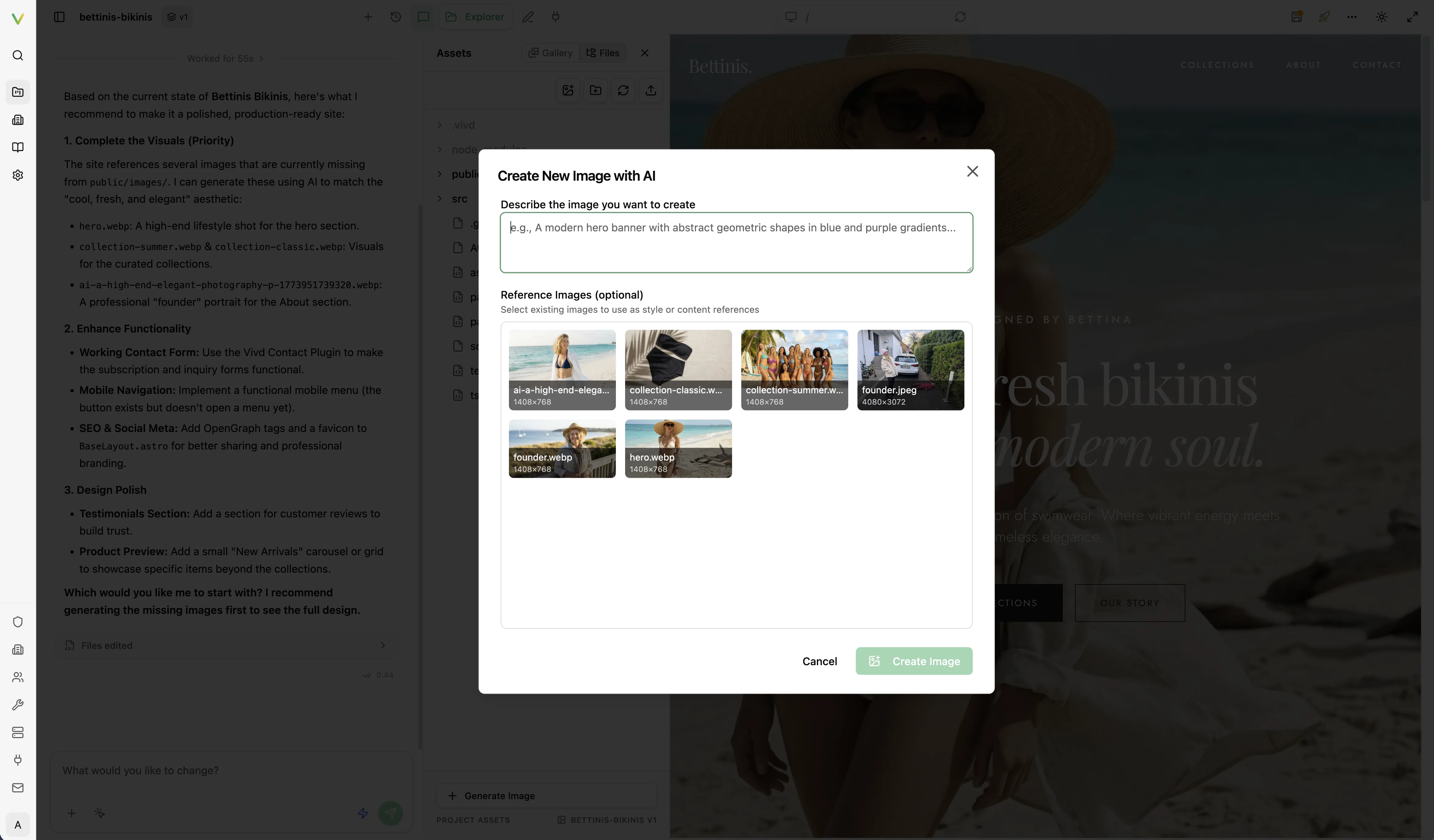
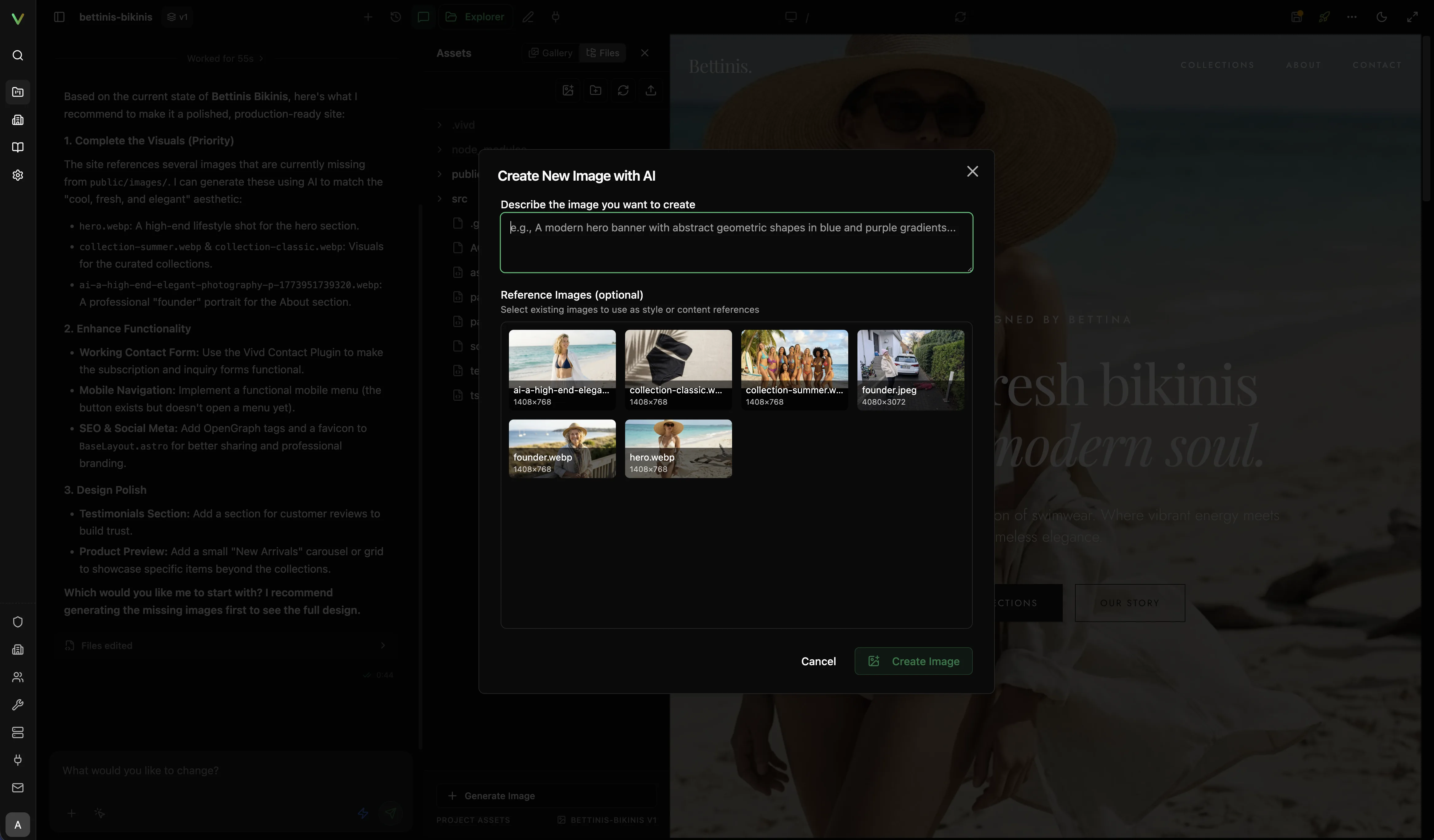
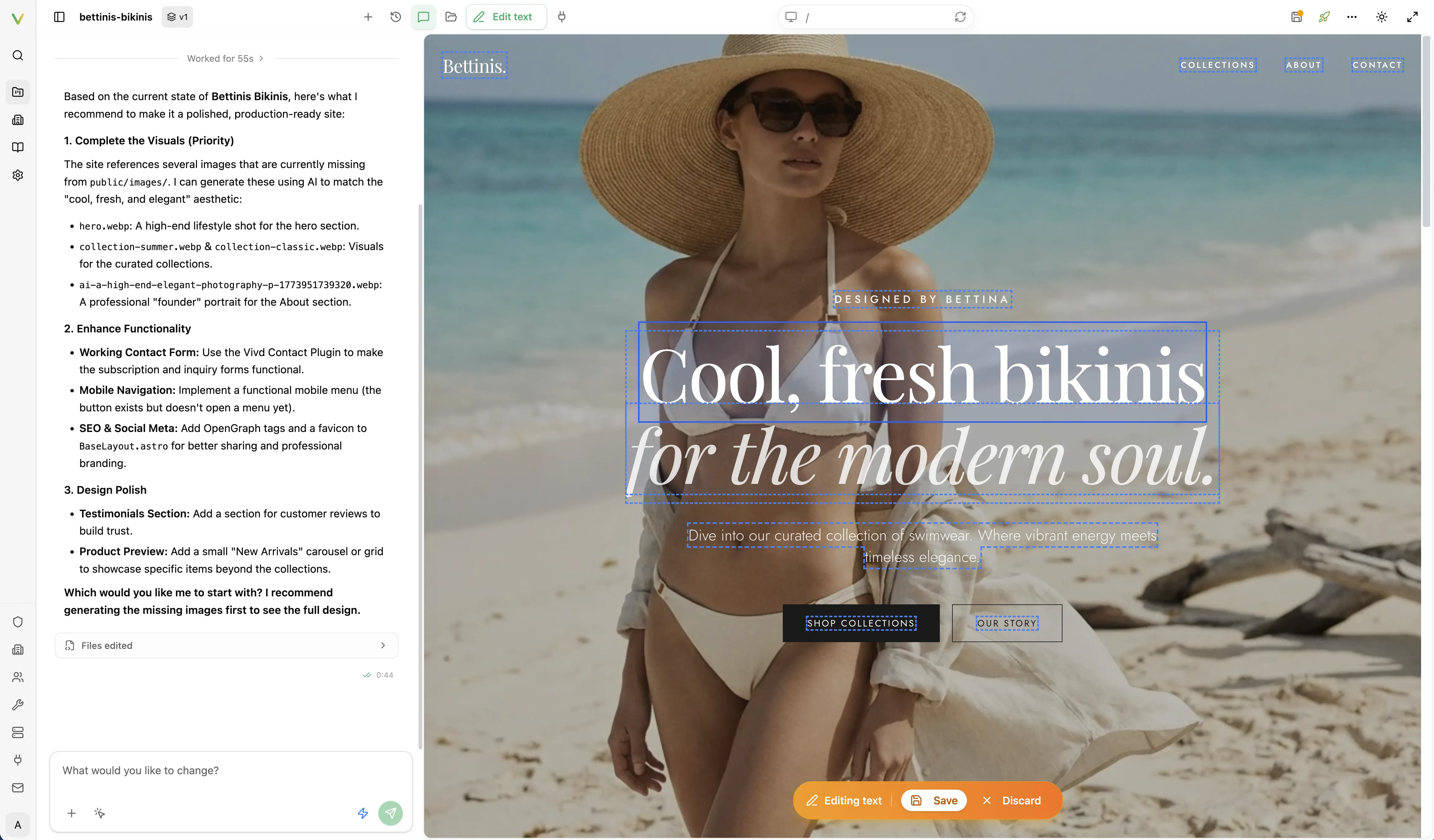
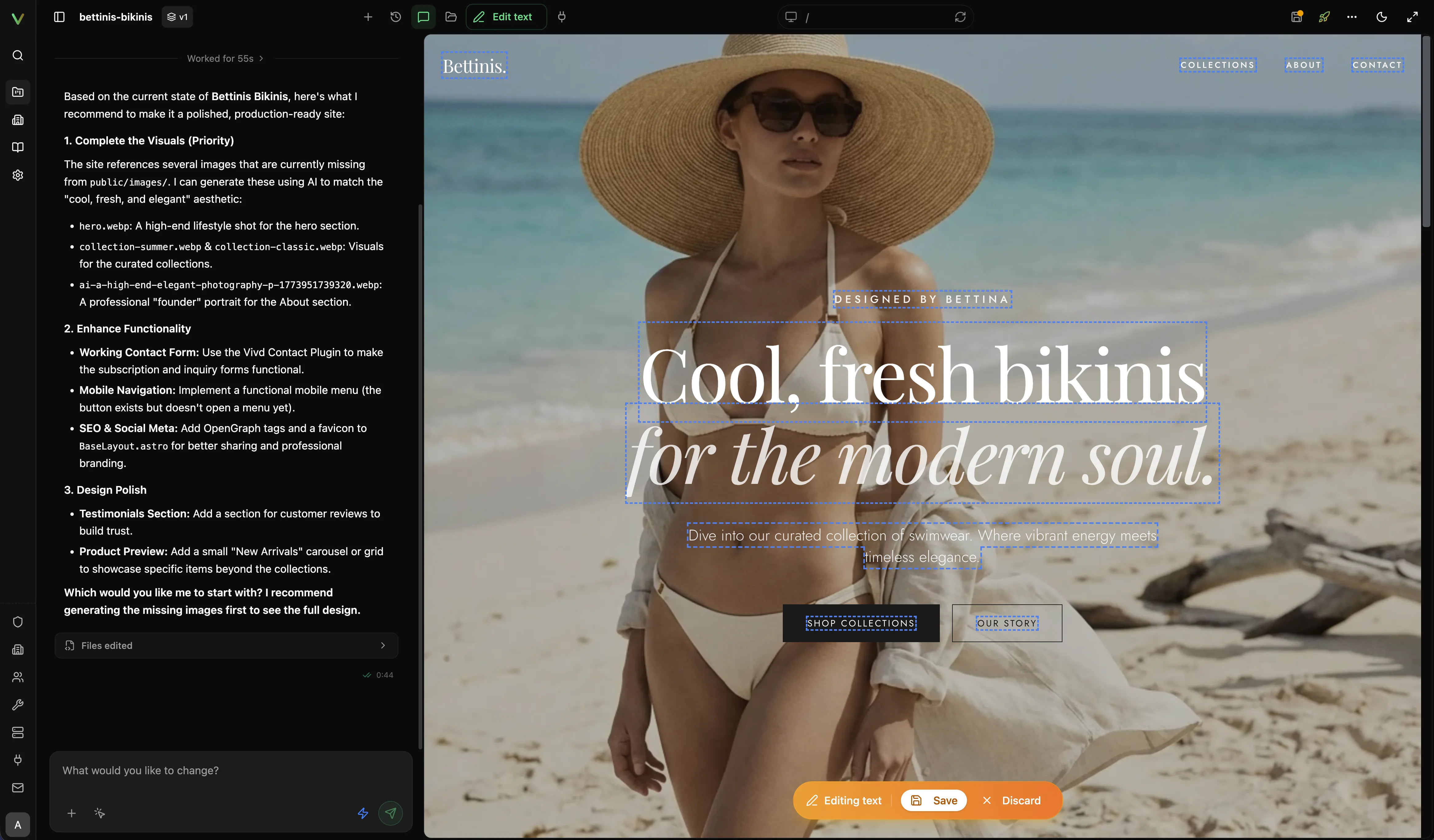
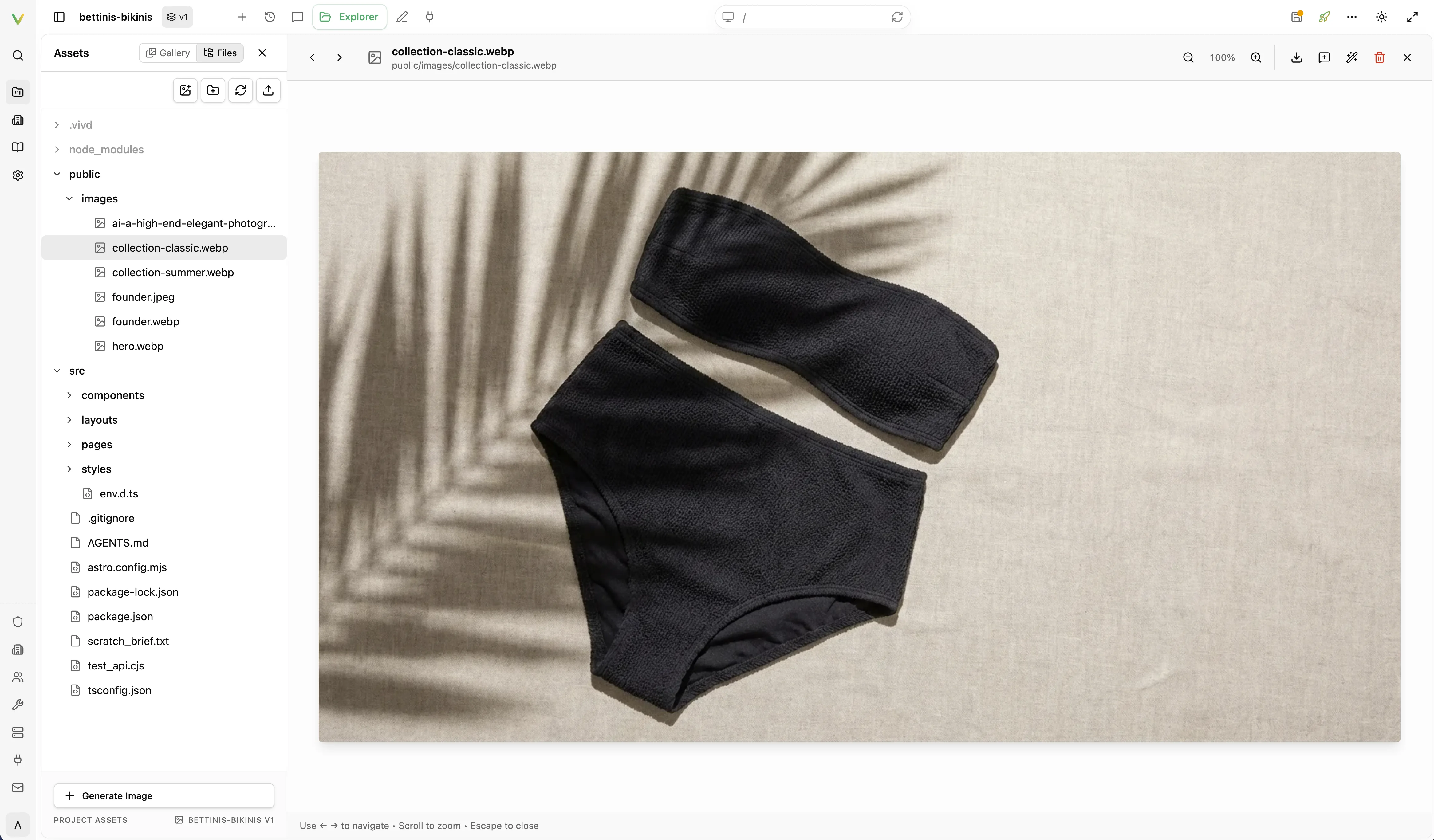
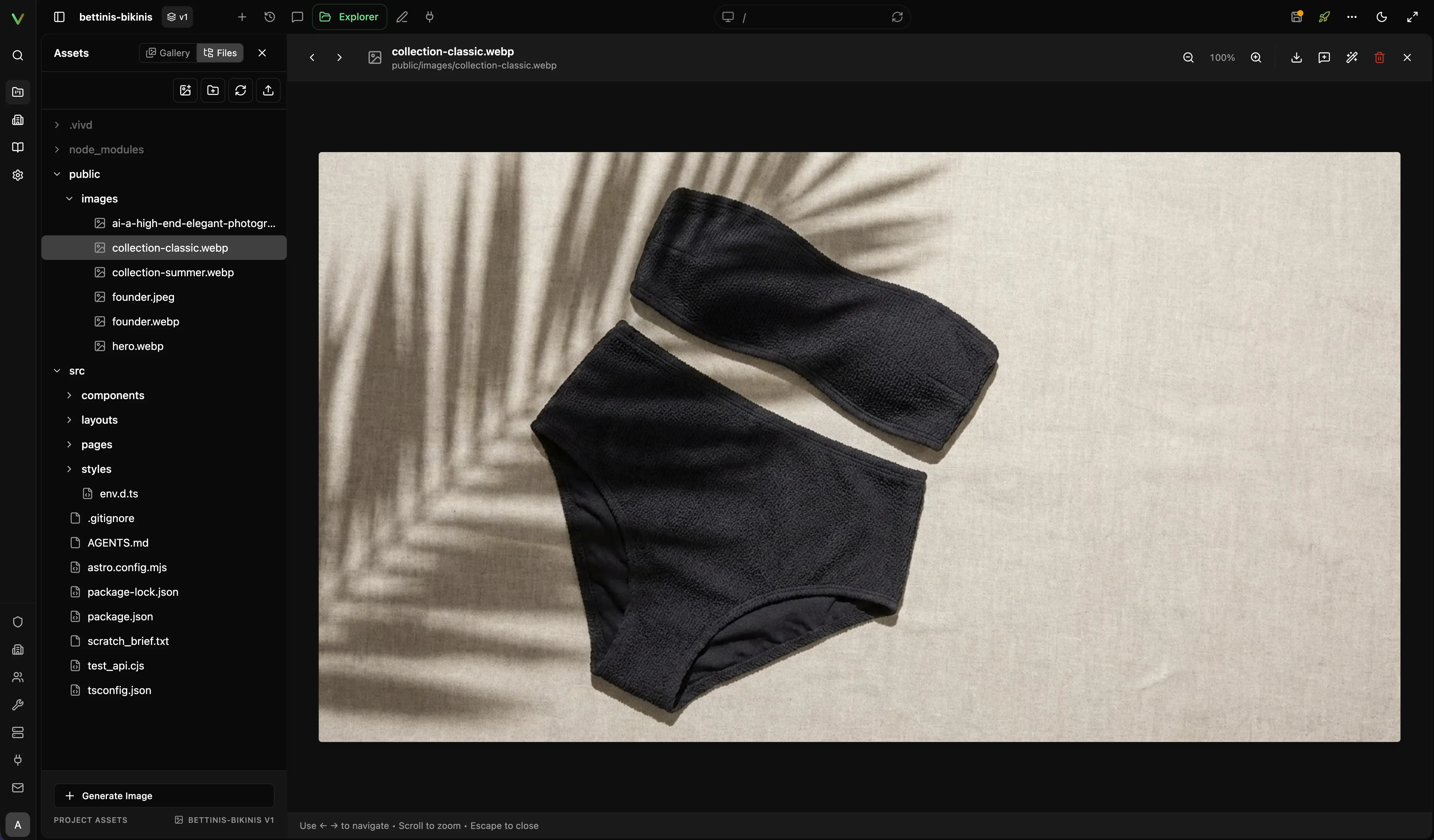
Studio is where you take a generated draft and turn it into a launch-ready site. It is not just the agent chat. Studio combines the agent, the live preview, direct element/text editing, and the asset/file explorer around the same isolated project runtime.
What Studio actually includes
Section titled “What Studio actually includes”- AI chat for broader layout, styling, content, and implementation work.
- Direct preview editing when you want to click into the page and fix copy or target a specific element.
- Asset and file explorer for uploads, drag-and-drop replacements, organization, and file-level edits.
- Live project preview served from the isolated Studio runtime for that workspace.
That last point is important: the preview inside Studio is backed by the real project environment. For Astro or other dev-server projects, Vivd starts and proxies the project dev server from the isolated runtime. For static projects, it serves the workspace files directly. In both cases, the Studio preview is the current project state, not a separate render-only mock view.
Choose the right editing mode
Section titled “Choose the right editing mode”A strong first editing session
Section titled “A strong first editing session”- Open the project in Studio.
- Review the page from top to bottom and identify the 3 most obvious problems first.
- Use the chat for larger layout, copy, or style changes before making tiny refinements.
- Switch to direct text editing once the structure is mostly right.
- Replace or upload assets where the draft still feels generic.
- Run one final pass focused on CTAs, contact details, and mobile readability.
What stays in draft until you publish
Section titled “What stays in draft until you publish”- Draft / Studio is your working version inside Vivd.
- Live site is what visitors see on the published domain.
- Layout, copy, image, and plugin changes remain in draft until you publish again.
Changes in Studio do not affect the live site until you publish again.
Saving before you publish
Section titled “Saving before you publish”When you are close to republishing, remember that Vivd publishes from saved Studio state.
- Use Save when you want your latest edits turned into the current Studio snapshot.
- Open the publish dialog from the green rocket in the top-right toolbar.
- If the publish dialog shows Save changes, click it before publishing.
- If Studio says you are on an older snapshot, go back to the latest one before you publish.
If the draft still feels generic
Section titled “If the draft still feels generic”- Replace placeholder imagery before spending time on micro-polish.
- Tighten the project description, references, or direction if the initial generation was too vague.
- Revisit Import an Existing Website if the source site was strong but the first pass missed obvious sections.
- Revisit Create from Scratch if the first prompt did not include enough business, audience, or visual direction.
- Configure Plugins Overview before the final publish pass if the project needs forms or analytics.