
Forms
Forms collects what visitors send from your published website and stores every submission in Vivd. One website can have up to 20 forms, for example a contact form, a quote request and an event registration, each with its own fields, recipients, emails and inbox view.
Get access
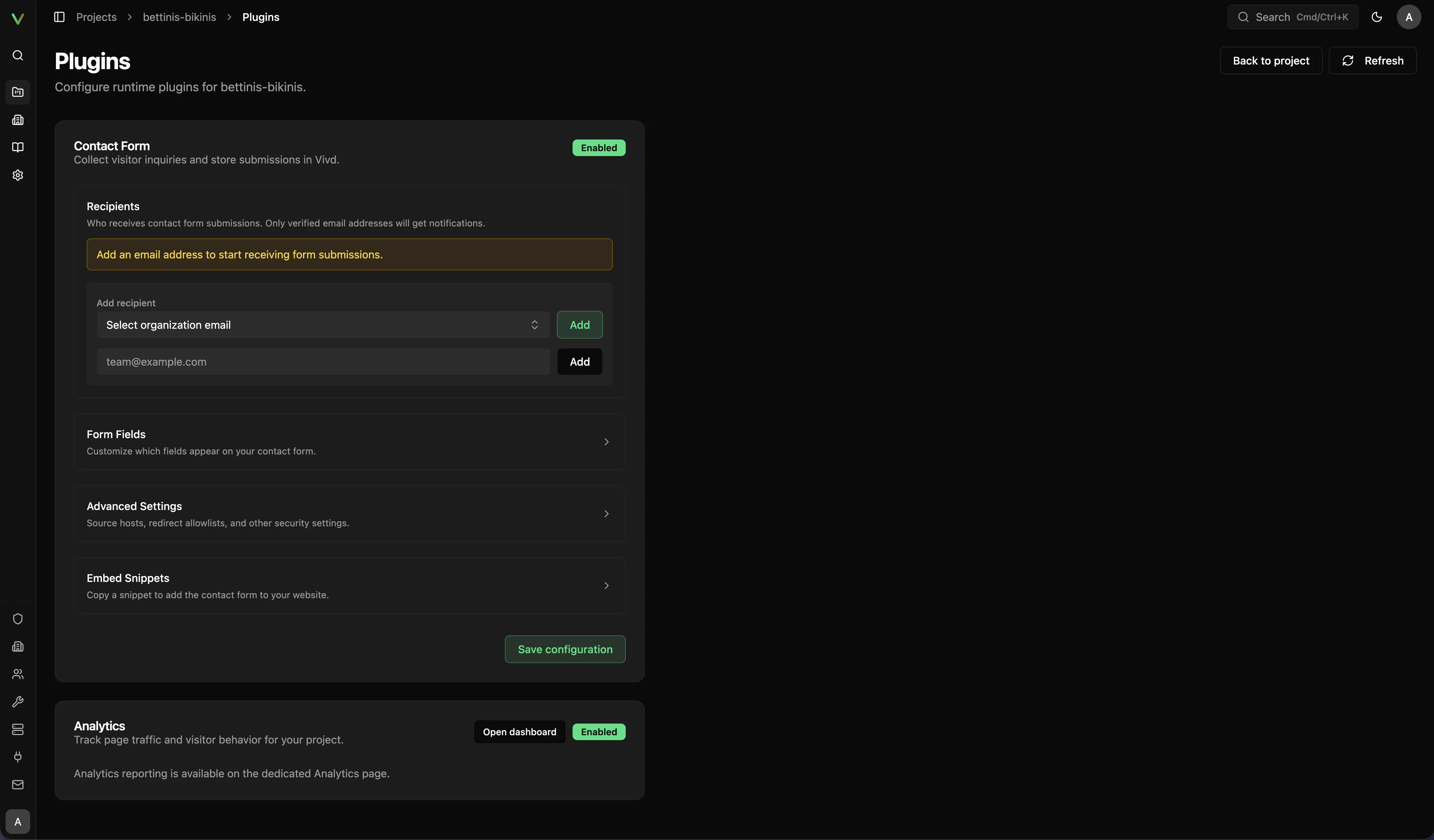
On hosted Vivd, Pro includes one Forms license. Open it from your website’s Plugins page and choose Upgrade to Pro or Enable on this site. If all licenses are in use, buy another license or release one from another website. Organization members should ask their owner or admin. See plugin access.
One license covers every form on that website. Enabling it does not add a form to your pages. Set up your forms below, then ask Vivd in Studio to add them to the right pages and publish.
The Contact Form
Every website starts with one form called Contact Form, marked Default. It asks for a name, an email address and a message. You can rename it and change its fields, but you cannot remove it. Contact forms that were already on your website before you added more forms keep sending to it.
Add a form
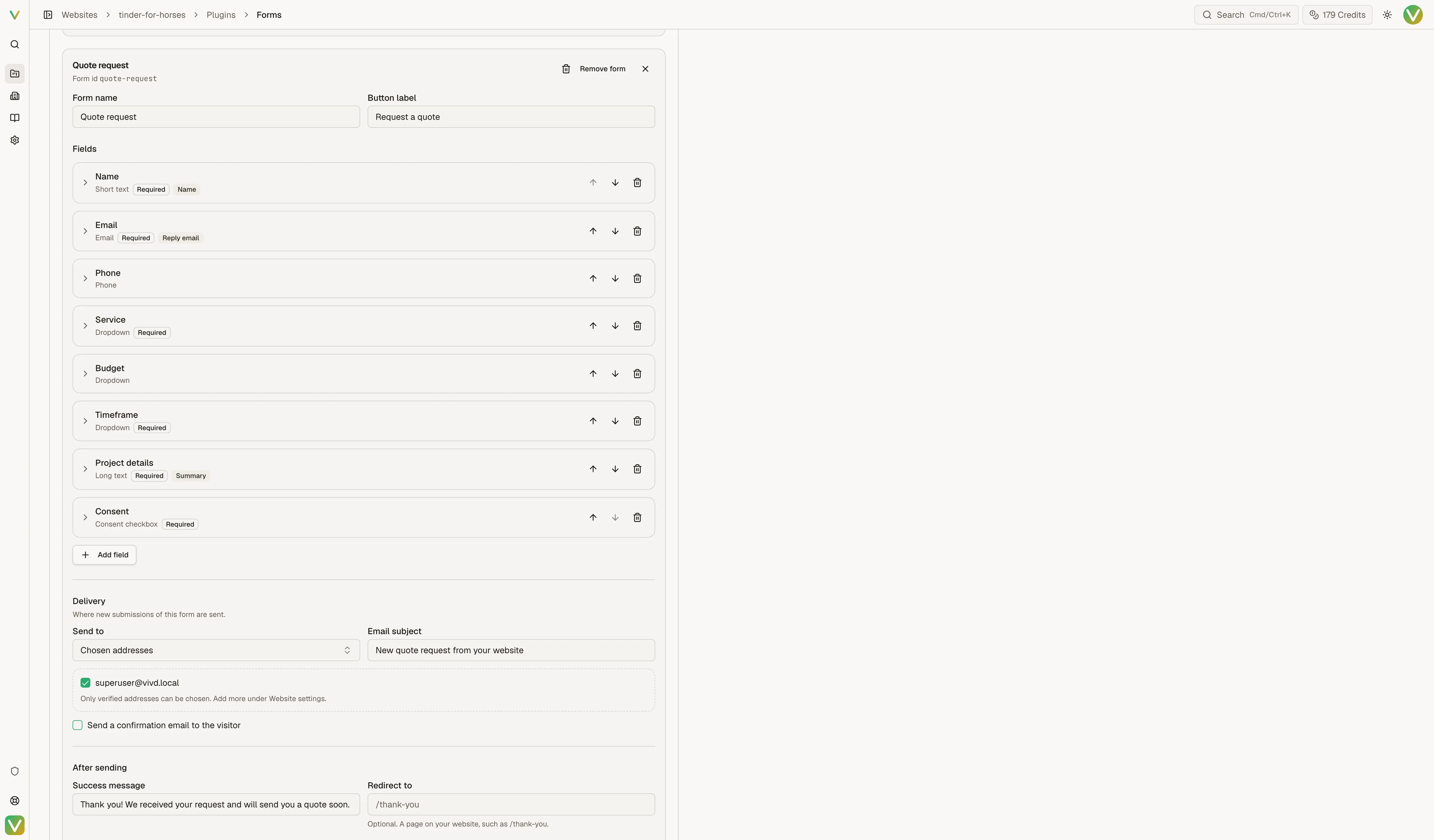
Choose Add form, give it a name and pick a starting point:
- Quote request: service, budget, timeframe and project details.
- Callback request: name, phone number, the best time to call and the topic.
- Appointment request: preferred and alternative dates, time of day and the reason.
- Reservation request: date, time and number of guests. Visitors see that this is a request, and you confirm each one by email.
- Event registration: number of attendees, sessions and dietary notes.
- Application: position, a link to a CV or portfolio, availability and a cover note.
- Blank form: start with a name and an email field.
Each ready-made form ends with a consent checkbox: “I agree that my details will be used to answer my request.” with a link to your privacy policy. The wording is yours to change. You are responsible for it and for describing each form in your privacy policy; Vivd can draft that paragraph for you.
You can also ask Vivd in Studio chat, for example “add a quote request form to the services page”. Vivd creates the form, places it on the page and shows you each change for approval.
Fields
Open a form to add, remove and reorder its fields. Each field has a label, can be required or optional, and can show a short help text. The field types are:
- Short text, Long text, Email, Phone, Web address, Number and Date;
- Dropdown or Single choice, where visitors pick one option;
- Multiple choice, where visitors pick one or more options;
- Consent checkbox, a single checkbox with your sentence and an optional link.
You can set simple rules such as a shortest and longest answer, a lowest and highest number, or the earliest and latest date. Under Advanced, a text field can require a specific format.
Use as tells Vivd what a field means:
- Name: shown as the sender in your inbox.
- Reply email: replies to a notification go to this address, and the confirmation email is sent to it.
- Summary: shown as the preview line in your inbox.
Visitors cannot upload files. When you need a CV, photos or documents, ask for a link instead, as the Application form does.
Delivery
Each form has its own delivery settings:
- Send to: the Website recipients by default, or the addresses you choose for this form. Every address has to be verified before it receives submissions.
- Email subject: the subject of the notification you receive.
- Send a confirmation email to the visitor: an automatic reply with your Confirmation subject and Confirmation message. It needs a required email field set to Use as: Reply email.
- After sending: the Success message visitors see, or a page to Redirect to, such as a thank-you page.
The confirmation email uses your saved text in your website’s email look. It does not repeat what the visitor sent. Replies to it go to the first address this form sends to. A visitor receives at most one confirmation per hour, even when they send several forms, and addresses with known delivery problems are skipped. Your team’s notification is sent separately; its status in the inbox does not describe the confirmation email.
Submissions and CSV
The inbox shows the submissions of all forms. Filter it by form to see that form’s fields as columns, or choose All forms to see the sender, the form and the summary. Search and the other filters work in both views.
Export CSV downloads the selected form. With All forms selected, the button
reads Export all forms. Every export has a formId column, so older
spreadsheets that you combine with new exports gain one column.
Submissions are kept for 30 days.
When you change or remove a form
Published pages keep a form as it was when they were published. After you add a required field or change a form’s options, ask Vivd to update the pages that contain the form and publish them. Until then, visitors on those pages may not be able to send the form.
When you remove a form, pages that still contain it keep working. Their submissions reach your website recipients and appear in the inbox as Removed form. Submissions you already received are kept. Ask Vivd to remove or replace the form on those pages.
Monthly allowance
All forms on a website share one monthly submission allowance. When it is used up, new submissions from your website are rejected until the allowance resets or you add a top-up, and Vivd emails the organization owners at 80% and again at 100%.
On a paid plan you can buy a Forms quota top-up for 2,500 more submissions per month per unit. On Free, upgrade first.
Launch check
For each form on your website:
- Confirm who it sends to.
- Send a real test submission from the published page.
- Check that it reaches the right inbox and, if turned on, that the confirmation email arrives.
- Check that it appears in the inbox under the right form.
Good defaults
- Keep each form short. Ask only for what you will use.
- Use one form per purpose rather than one long form for everything.
- Make the button label specific, such as “Request a quote”.
Troubleshooting cues
- If a form is visible but messages never arrive, check the form’s Send to addresses and whether they are verified.
- If submissions show up as Removed form, a page still contains a form you removed. Ask Vivd to update that page.
- If visitors report that a form no longer sends after you changed it, ask Vivd to update and publish the pages that contain it.
- Leave Allowed source hosts empty unless you need a manual list. Adding values there replaces the websites Vivd detects for you, including the Studio preview, and spam protection can then stop forms in the preview.
- If the live website behaves differently from Studio, see Troubleshooting.
For self-hosted installs, use Email & Deliverability when the problem looks install-wide rather than specific to one website.