
Create from Scratch
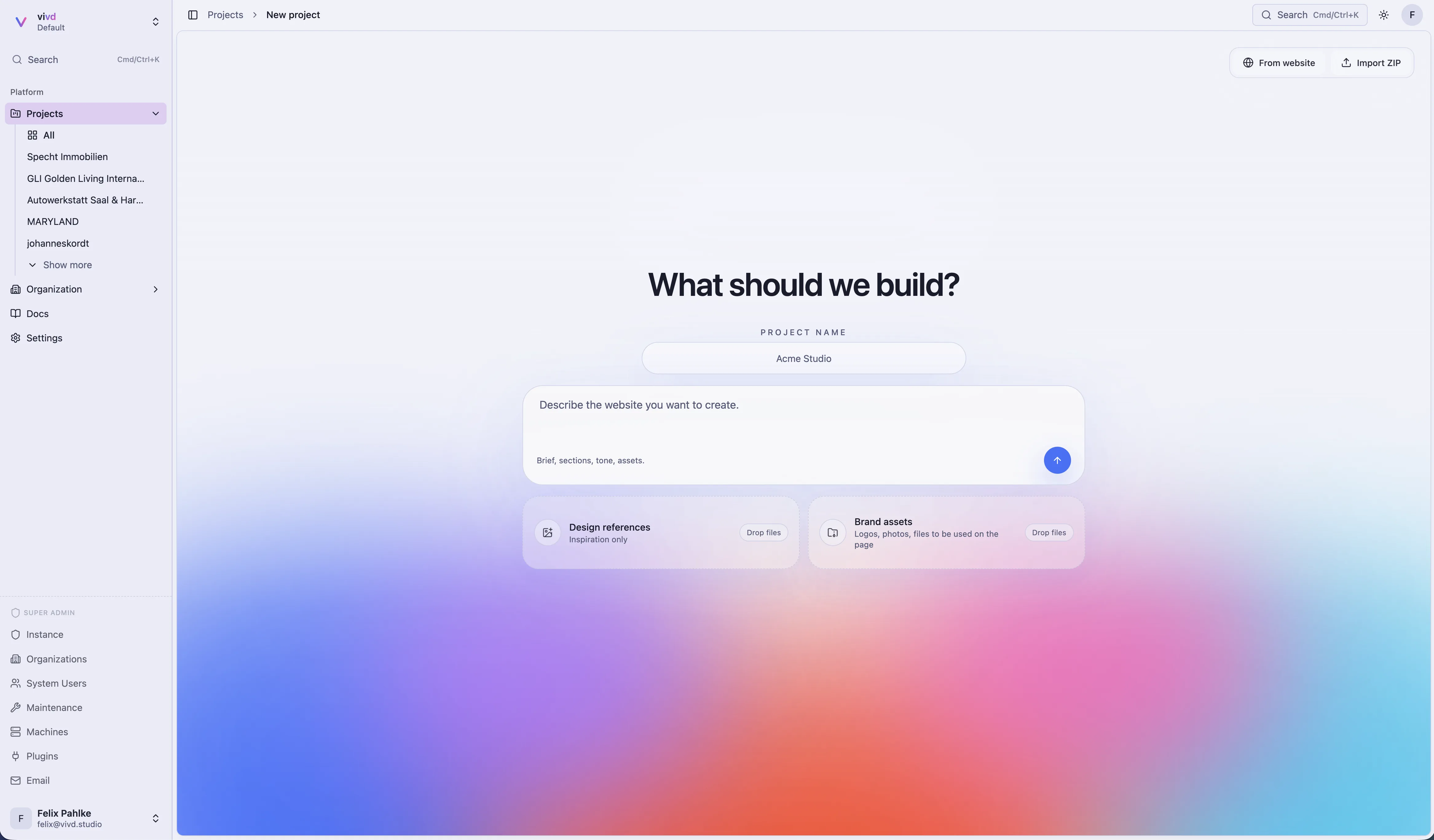
The scratch flow is where Vivd composes a site around your own brief, assets, references, and desired direction.
Before you start
- Write a short description of the business, offer, and audience.
- Collect a few useful assets such as logos, team photos, or product images.
- Decide what kind of tone you want: practical, premium, editorial, playful, minimal, and so on.
- Check that it is a website Vivd builds. Your website can sell a few products, but Vivd doesn’t build full online shops with a cart, member logins or apps. What Vivd is for lists what to do instead.
Steps
- Click New website. Vivd opens the scratch flow directly.
- Pick a template if one fits, or skip the gallery and describe the site yourself.
- Add the core business details and context.
- Upload any assets that should influence the draft.
- Set the creative direction in the brief.
- Start generation and review the preview concept.
Start from a template
Below the composer, Start from a template shows eight built-in starting points:
- Brewery & Beer Garden
- Coffee Roastery
- AI Production Studio
- Restaurant & Bistro
- Photography Portfolio
- SaaS Product Site
- Yoga & Wellness Studio
- Creator One-Pager
The first two lead the gallery as wide cards that play a short muted loop while they are on screen. If your device is set to reduce motion, they show a still image instead. The other cards show a small live view of the template. Each card names the template and its category.
Brewery & Beer Garden and Coffee Roastery open with a scroll animation: as the visitor scrolls, the page travels through four scenes, and normal sections for the offer, visiting and contact follow. Visitors who turn off motion in their device settings see the scenes as still images with their text instead.
These two motion templates are part of Pro and carry a Motion mark and a Pro badge. Every plan can open their full preview. On Free, Use template shows a lock, explains that the template is part of Pro and offers Upgrade to Pro. Every other template starts as usual.
Click or tap a card to open the template full size with its description and tags before you decide. Point at a card, or move to it with Tab, to see Use template and Preview on the thumbnail. Use template marks it as Selected, and Vivd uses it as the starting structure for the first generation. Your brief, assets, and references still shape the result, so a template narrows the starting point rather than replacing the interview.
If you would rather not build the site yourself, the gallery ends with Rather have us build it? Tell us what you need., and a template’s preview offers Have us build it for you. Write what you need and send it. The request goes to support together with the template you had open, and the reply comes by email to your account’s address. The link is shown only where a support address is configured.
The two motion templates have their own request. Have one built for you sits under the card, next to the template’s name. The preview says Have an advanced website like this built for you by the Vivd team. and shows Ask the Vivd team next to the start button. Write what your business does and what the site should show, and send it. The Vivd team replies by email and talks it through with you. See Motion Sites.
What makes the first draft better
- Concrete description of the offer, not just industry keywords.
- A clear desired tone and audience.
- Real assets instead of placeholder expectations.
- A short note about what matters most on the first screen.
Visual direction and themes
The scratch flow is not only about collecting business facts. It is also where you set the visual direction that shapes the first version.
Vivd’s own interface now stays on the vivd-sharp theme. Use your brief,
references, and brand assets to steer the generated site’s visual style.
- Use design references to signal layout energy, density, photography feel, and overall mood.
- Use brand assets to anchor the draft in real colors, logos, and imagery instead of placeholders.
- Say the intended tone directly, for example calm editorial, premium minimal, bold modern, or playful.
- If you already know the desired site direction, mention it explicitly instead of hoping the first pass infers it.
Model for the first draft
Next to the send button, a chip names the model that builds your website, for example GPT-6.1 Sol. Point at it and it says so. Most people keep the recommended model. Click the chip to pick another; the list shows what a first draft usually costs with each model, for example 5–10 Credits. Generated images add 0.5 Credits each. Larger or more complex sites can use more. The first draft uses the model’s recommended thinking level; you can change models and thinking levels later in Studio chat.
The chip and the line under Start building in Studio, for example GPT-6.1 Sol · Change, show the same choice, so you can pick the model before you write anything or change it just before the build starts. The model only builds the website. The conversation on this page and the design previews stay the same whichever model you pick.
If your Credits don’t cover what the picked model usually needs at most, Vivd says so before it starts, for example “Claude Opus 5.5 usually needs up to 10 Credits for a first draft. You have 4. Larger or more complex sites can use more.” Choose Buy Credits, go back to the recommended model, or, for a GPT model, Connect ChatGPT so the draft runs on your ChatGPT subscription.
Once a first draft has started, it keeps going even if your Credits run out during it, and the Credits it used are charged. Two things still stop it:
- Your organization’s spend limits. Daily, weekly and monthly Credit limits apply to first drafts like any other work.
- A safety limit per draft. If a draft uses twice what the chosen model usually needs at most, Vivd stops it and says “This draft used more Credits than expected and was stopped. What Vivd built so far is saved. You can continue in Studio.” On your ChatGPT subscription only Credit-billed work, such as generated images, counts toward this limit.
A stopped draft is not lost. Open the project in Studio and ask Vivd to continue.
On the Free plan the first draft uses the recommended model. Other models show a Pro badge, unless they run on your connected ChatGPT.
Expected result
During the Design Mode interview, the conversation title is temporary. Once the brief is ready to continue, Vivd prepares a website name from the interview and keeps that name for the Studio handoff.
Vivd saves your new website and uploads its media before opening Studio. If that preparation fails, the website reports an error and Studio does not start. A copied website gets its own media storage.
Vivd produces a first site version and preview direction that you can then tighten in Studio.
Next step
Use Edit in Studio to shape the generated structure into the final site you want.