
Edit in Studio
Studio is where you take a generated draft and turn it into a launch-ready site. It is not just the chat. Studio combines Vivd, the live preview, direct element/text editing, and the asset/file explorer around one isolated environment for your website.
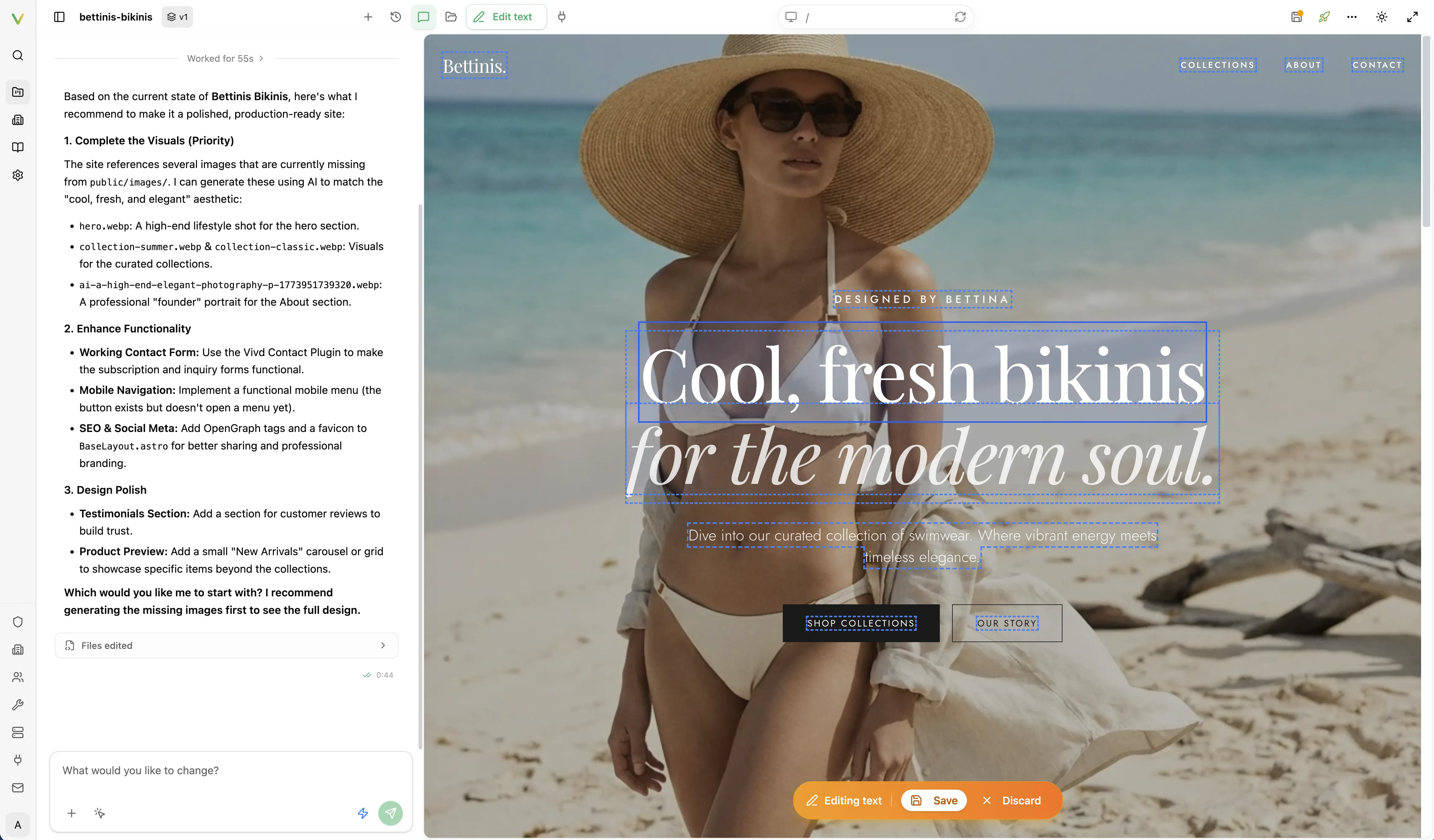
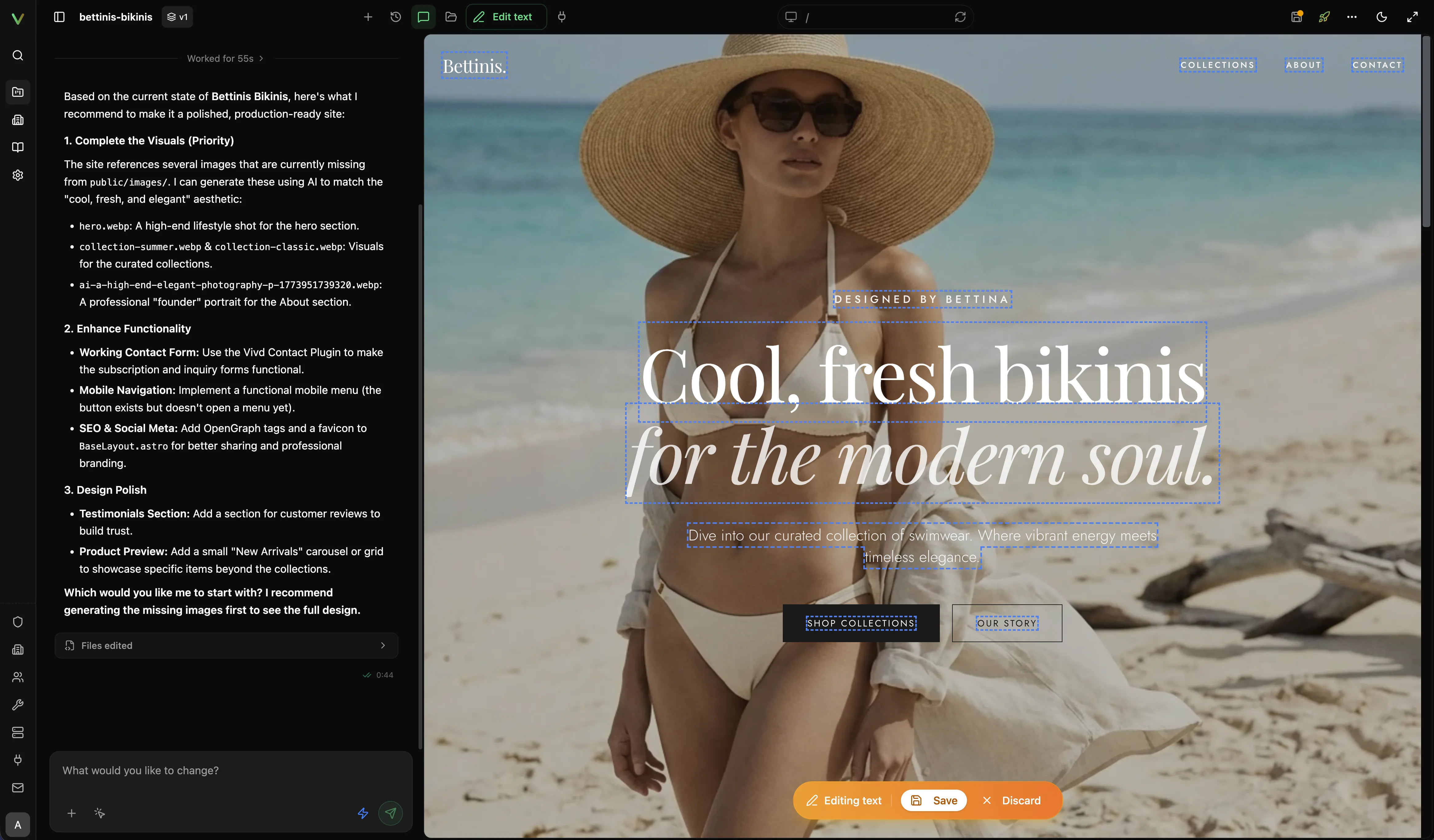
A saved preview of your website stays available while Studio is asleep. Choose Edit to start the editing environment; simply viewing that saved preview does not wake Studio. Startup can take longer when your website has to restore its files or set itself up again.
When you reopen a chat, Studio shows Loading this chat… until its saved messages are ready. Your messages and Vivd’s replies then appear together.
Continuing from Design mode starts the same Studio environment. Initial generation begins once your website is saved and Studio is ready.
Studio sleeps after a few minutes without interaction. Leaving a tab open does not keep it running indefinitely. Work Vivd already started continues independently; interact with the sleeping editor to resume editing.
Vivd can retire a sleeping environment that uses an older Studio version once your website is safely saved. Your next edit restores that saved state in an up-to-date environment. Active editing environments are protected.
Unsaved edits are autosaved for your website and restored when its editing environment is replaced. Autosaves are separate from the named versions in history. If work appears missing, ask Vivd to compare your website’s autosaves with its saved versions while preserving your current edits. If older autosaves conflict, Studio stops recovery rather than opening an older saved version for editing. If Studio cannot check or download the latest autosave when reopening, it also stops before opening the editor. Existing files are kept. Use Try again once the connection is available; a saved version alone does not establish whether newer unsaved edits exist.
Restart Studio restarts the editing environment with the configured Studio image. It shows Restarting Studio… until the restart finishes, then reopens the editor automatically. If the restart fails, Vivd reports the failure. Reloading the browser only reloads the interface; it does not update the Studio image.
Connecting from a company network
Hosted Studio gives each editing environment its own HTTPS address. On
installations where that is enabled, your network needs HTTPS and secure
WebSockets on port 443 for any hostname ending in .studio.vivd.studio,
alongside your usual Vivd address. Uploads, chat and the live preview use that
address. Your IT team may need to allow those hostnames or streaming connections.
Older editing environments may still use their original address during the rollout. If Studio reports that your browser cannot connect, share that address and the browser error with your administrator or Vivd support. Reloading the page cannot change a company firewall or proxy rule.
What Studio actually includes
- AI chat for broader layout, styling, content, and implementation work, with larger message text and relaxed spacing for easier reading.
- Direct preview editing when you want to click into the page and fix copy or target a specific element.
- Asset and file explorer for uploads, drag-and-drop replacements, organization, and file-level edits.
- Live preview of your website, served from its own isolated Studio environment.
That last point is important: the preview inside Studio is backed by your website’s real files. For websites that need a build step, Vivd starts and proxies that website’s own preview server from the isolated environment. For plain static websites, it serves the files directly. In both cases, the Studio preview is your website’s current state, not a separate render-only mock view.
Following links inside the preview lets the website handle its own navigation and page transitions. Studio updates the address bar without reloading the page again. Use Refresh to reload the page you are currently viewing.
Editing starts from the Edit button that floats at the bottom right of the preview. It is the one place for editing and its actions:
- While you browse, it reads Edit. The first time you open Studio, a short hint points at it.
- While you are editing, it turns into Done and a frame runs around the preview.
- Once you have written comments that are not sent yet, Send 3 comments joins Done or Edit. It sends them to Vivd and opens the comments rail so you can follow the work; from editing, it also leaves editing.
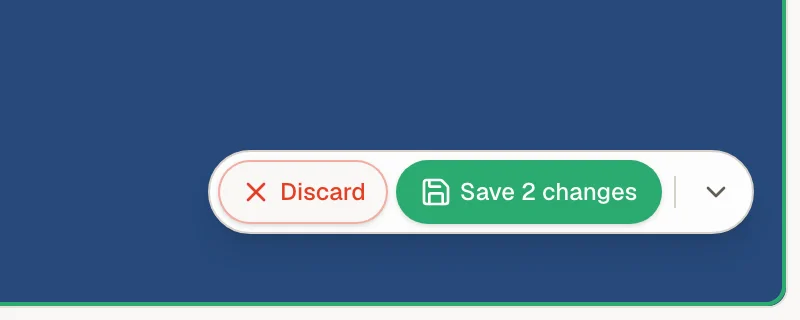
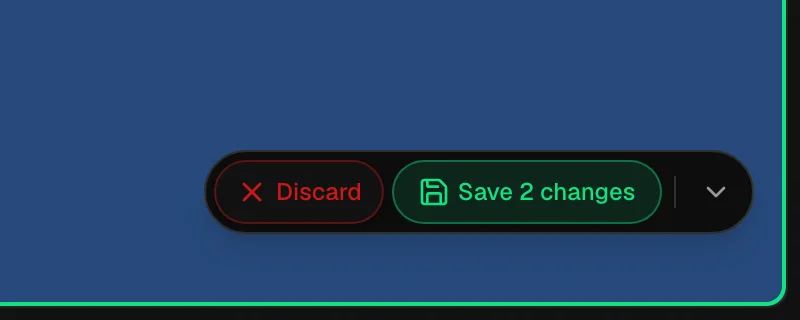
- Once you change something, Done gives way to Discard and a Save 1 change button that counts what one save covers. Discard asks before it throws your changes away. Send is never offered next to unsaved changes, so Vivd never works on a page with unsaved changes. After saving, Send stays offered until the comments are sent.
If the page you changed also exists in other languages, Studio tells you after you save: This page also exists in English. Your change is only on the page you edited. Choose Ask Vivd to update it and Vivd makes the same change on the other language pages, in their language; the request it sends appears in the chat. Close the note to leave the other pages as they are. It appears once per save, only for text changes, and not when the other page already says the same thing. Studio recognizes other-language versions when your pages name each other as language versions. If the note does not appear on a website with several languages, ask Vivd to link the language versions of each page to each other.
The button sits above the media rail when the rail is open. Its arrow folds it into a small tab on the bottom edge of the preview, which reads Edit, Editing, 3 to send with comments waiting or, with unsaved changes, 2 unsaved, so waiting work is never hidden. Click the tab to bring the button back. Studio remembers the choice. Editing works in the desktop view; in the phone and tablet frames the button is greyed out.
Studio on a phone
Studio fits a phone screen. The preview fills the screen, and a Chat button sits at the bottom left, across from Edit. Tap it to open the chat over the preview; the X at the top of the chat brings the preview back. While you type, the message box rises above the keyboard. Content, New chat and the other panels live in the menu behind the three dots in the toolbar. Tabs that do not fit the width, such as the organization settings tabs, scroll sideways and fade at the edge that still hides more.
While you are editing, clicking text in the preview puts the caret where you clicked, so you can type straight away. Drag across words or double-click one and type to replace them; it does not matter if you let go of the mouse outside the text. The element is outlined and a small bar stays beside it with everything else you can do: Style on words, Replace image on a picture, and Comment on anything at all. The bar never goes away while you type, so a note is always one click from the words you are changing. Press Escape to let the caret go, again to let the selection go, or click an empty part of the page. Links and buttons stay inert until you leave editing, so a click lands the caret instead of following the link. Content text over a video or a scroll animation can be clicked while you edit, even where the live page lets clicks pass through it to the animation. Text the animation has faded out stays out of the way. Save or discard your changes before you leave editing.
Choose Style when you want more than the words: it opens the handles for the text box, its width and the text styles panel, for that element only. Press its X or Escape to put those tools away.
Replacing an image stays intentionally conservative. Choose Replace image to pick one from your media library, or drag an image from the library onto the preview. When Studio cannot swap a picture safely, Replace image is shown greyed out with the reason, and asking Vivd in the chat to replace it always works.
Comments on the preview
Choose Edit at the bottom right of the preview, then click anything in the preview and choose Comment. It works while you are writing in the text too: the note opens and what you typed into the page is kept. With something that is not text selected you can also simply start typing: the first key goes straight into a new note. The note field opens beside the element with the cursor already in it. Type what you would like changed and press Enter. Shift+Enter is a line break, and Escape closes the note and keeps what you wrote. The note is saved as a request attached to that element, and a numbered pin appears where you clicked. Collect as many requests as you like before Vivd starts.
A comment can ask for changes to text, images, styling, layout or code. The bar and the note name what you clicked and, when the wording comes from a content entry, how many places on the page it appears in.
The comments rail sits beside the preview, collapsed to a thin strip until you open it. It appears once your website has comments or while you are editing, so the preview keeps its full width otherwise. Opening it narrows the preview rather than covering it, so every pin and element stays clickable. Reading and sending comments does not need editing to be on; writing a new one does. A saved comment lands in the rail.
Pins keep their numbers as you navigate or the preview refreshes. A pin leaves the page once its comment is done or declined; pick that comment in the list to see where it was. The rail shows requests across all pages, each card saying what you clicked and which page it is on, such as “Heading · Home”. If an element disappears, its comment stays in the list badged Element not found so you can clarify its target; a comment on a different page is badged On another page. Comments survive closing Studio and reopening it on a replacement editing environment. They are visible in Studio, not on your published website.
The button at the bottom of the rail, Send N comments to Vivd, sends the open comments as one chat turn. It is the only filled button in the rail. Send N comments on the Edit button does the same. To send a single comment on its own, open the three dot menu on its card and choose Send only this one. The turn captures the text and targets as it is sent; edits made afterward go out with the next one. Only one is in flight at a time, so the send actions stay disabled until it finishes. A line under the button names any comments that are waiting for your reply, which is why the count can be lower than the number of cards. The rail keeps the per-item ledger while Vivd works; the chat keeps the conversation. Each item gets a note from Vivd and one of four states:
- Open: work remains. An open comment wears no chip at all.
- Done: the requested change has been made, or you marked it done yourself.
- Vivd asks: Vivd needs something answered before it can continue.
- Declined: the note explains why it did not make the change.
Done and declined comments collapse under Done (N) at the end of the list. Open it to read them, or pick one of their pins and it opens itself.
Progress such as Working on 5 comments · 3 of 5 reported counts what Vivd reported back, including questions and declines; it does not mean every requested change is done. An interruption can leave items unreported. Studio does not automatically resubmit them. If the chat cannot accept the message, choose Send again to send the same comments. Progress refreshes until every item reports or ten minutes pass.
Review the notes and preview changes. A question from Vivd is answered on the card itself: type in the reply field and press Enter, or choose Reply. Shift+Enter is a line break. To pick a closed comment up again, choose Reopen in its three dot menu. Unanswered questions stay open but are not submitted again unchanged. You can also choose Mark done yourself. Changes to shared content may appear everywhere that entry is used; say so in your comment if you only want to change one placement.
Download media and use item actions
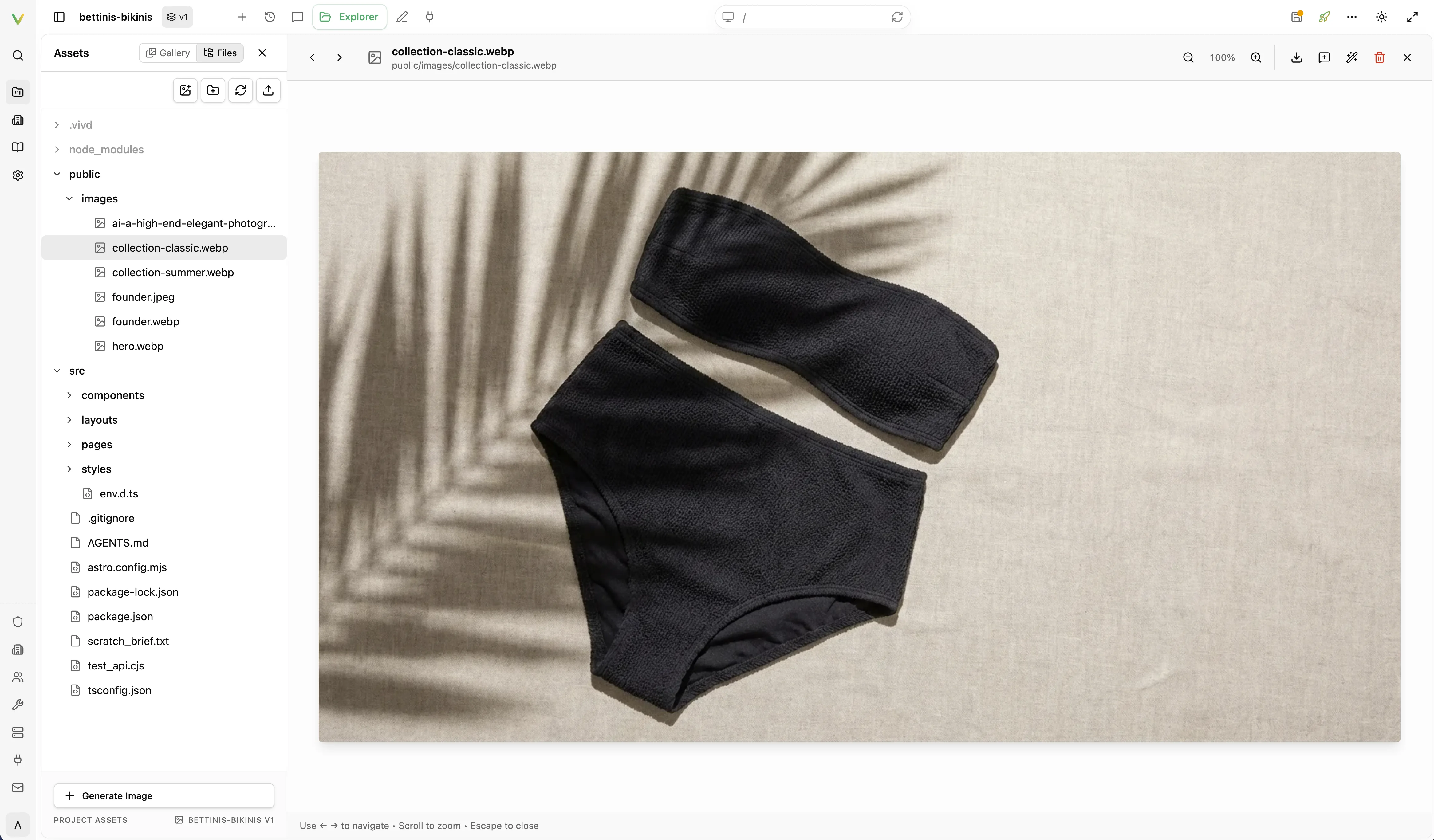
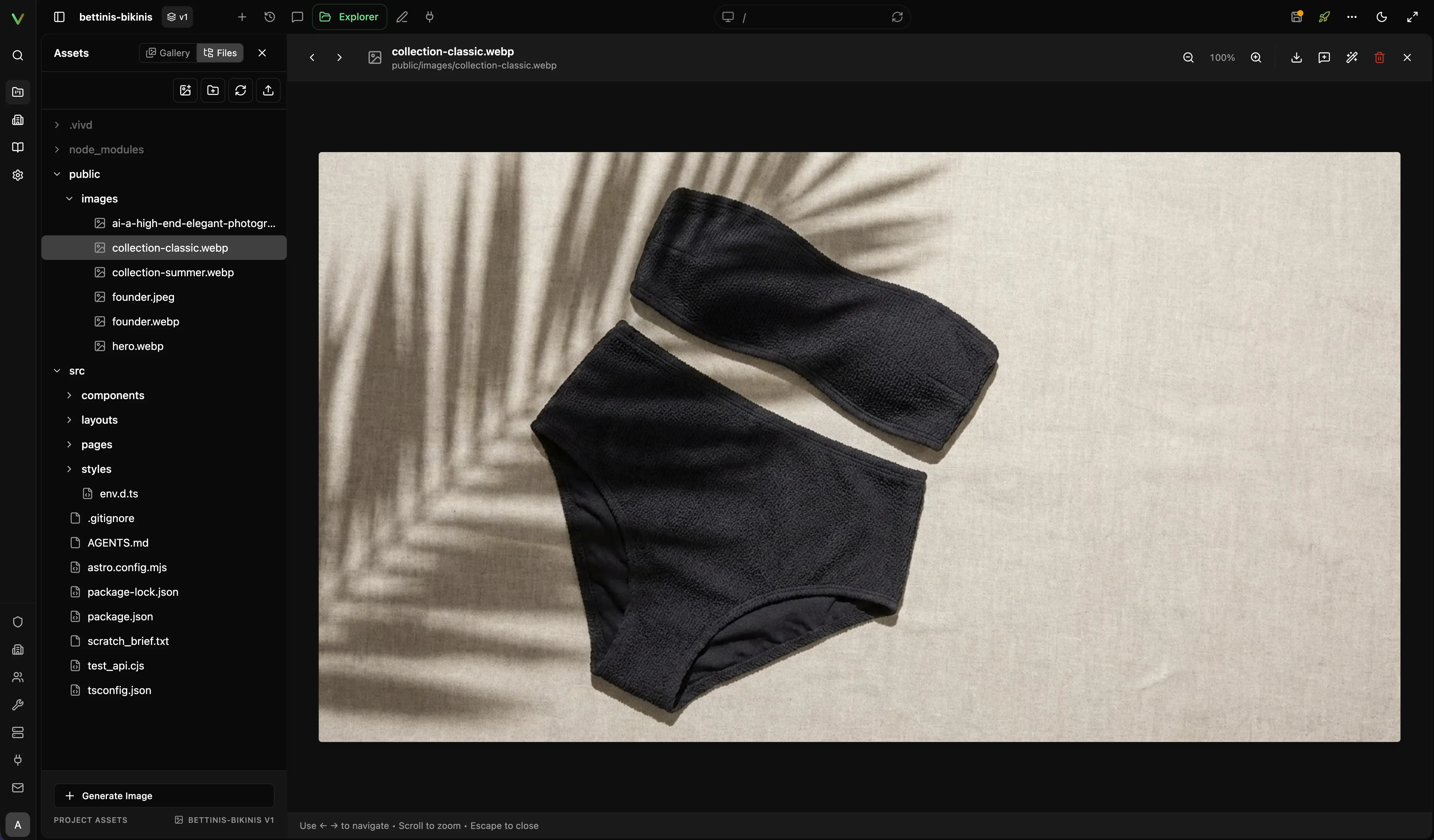
Select an image in Content → Media, open the ⋯ menu in its details panel, and choose Download original. The full image viewer also has a Download button. Downloads preserve the original file, including SVGs, for both your website’s files and cloud media.
Uploaded images retain their original bytes and dimensions, up to the 50 MB per-file upload limit. Thumbnails and responsive website versions may be optimized separately; they do not replace the stored original. Cloud media can be downloaded even when the file is not stored in your website’s own files.
Right-click a Content card or row, or use its ⋯ button beside the caption, to open details or a preview, copy its path or link, or ask Vivd about it. Media also offers Download original, and images offer Edit with AI when available. The ⋯ button appears on hover or keyboard focus and stays available on touch screens. The image viewer has the same menu access, plus Reset zoom and Add to chat when supported. External images outside the Vivd media library offer Open original. Zoom percentages are relative to the fitted image: 100% fits the image in the viewer, and Reset zoom restores that fit. Scroll to zoom toward the mouse pointer; the zoom buttons and keyboard shortcuts zoom around the center of the view. Drag an enlarged image to pan, or use the scrollbars.
To replace media, open its details and use Replace this image. The panel explains which entries will change before you upload the replacement.
Work with content in Content
Content is where the structured, repeatable parts of the site live: catalogs, blog posts, team members, testimonials, events, menus, and similar collections. Filter it with the chips at the top: All, then one chip per content collection on your website, then Pages and Media. Each chip carries its own count. Select an entry to edit its fields in the inspector, including localized fields, and use the create action to add a new entry to a collection.
Your changes to an entry stay in the inspector until you choose Save to draft. If Vivd changes the same entry while you still have unsaved changes, Studio keeps what you typed and asks you to choose: Keep mine saves your version, Load the new version drops it. Studio also asks before you reload or close the tab with unsaved changes. Unsaved article text is also kept in your browser: if the tab reloads or closes before you save, Studio offers to restore the text the next time you open the entry. Choosing Discard changes removes it.
To replace a PDF such as an instruction manual or safety data sheet, open its content entry and use Upload file on the document field, or Use existing to choose a file already in the media library. For multilingual entries, choose the matching language. Studio updates the displayed filename when the field has one. Choose Save to draft, open the download in the preview to check it, then publish. The previous file stays in the media library.
Content is backed by your website’s real Astro content collections, so Vivd edits
the same src/content.config.ts and entry files you can open in the file explorer.
Text and images that Content owns are rendered through the CMS toolkit components
CmsText, CmsImage, and VivdImage, which is what makes them click-editable in
the preview.
If you ask Vivd to check the content layer, these commands run without a running environment:
vivd cms statusinspects the local content collections andsrc/content/assetsvivd cms validatevalidates the collections and entry filesvivd cms helper statuschecks whether the CMS toolkit files are currentvivd cms helper installadds or refreshes the toolkit filesvivd cms helpprints the CMS guidance and constraints
Vivd runs vivd cms validate after changing the content config or entry files and
treats a failure as blocking, so a validation error is a real content problem, not a
warning to publish through.
Sync with GitHub
When the install has GitHub sync configured, the GitHub Sync panel shows the repository name, the SSH URL with a copy button, how far your website’s files are ahead of and behind the remote, and when the status was last checked. Use the refresh button to re-read it.
Pull brings the GitHub main branch into your website. Force sync
overwrites your website’s files with GitHub’s main and removes files deleted on
GitHub; Vivd creates a local backup tag before overwriting, and includes your
uncommitted changes in that backup. Both actions can be unavailable, and the panel
states the reason when they are. If the install has no GITHUB_ORG and
GITHUB_TOKEN configured, the panel says so and pulls stay disabled.
Duplicate a website from Studio
Open the ⋯ menu in the Studio header and choose Duplicate website. Vivd asks for a title and a website address for the copy before it starts, so the copy is never named for you. You stay on the website you were editing, and the Website duplicated message offers Open the copy when it is ready.
Take your website’s files with you
On a paid plan you can download a website’s files as a ZIP: choose Download as ZIP in the Studio header’s ⋯ menu or in the website card’s More menu. You can also work on the files from a folder on your computer, see Work with your own coding agent.
On the Free plan you can keep previewing, editing, sharing and publishing. The Download as ZIP item stays in the menu and opens Plan and billing, where you can upgrade. A plan you canceled keeps export until the end of the period you paid for.
Website media accepts images, MP4 videos, PDFs and fonts. Other video formats,
such as a .mov from a phone, don’t play in most browsers: export the video as MP4
first. Archive files such as ZIP,
TAR, GZIP, 7z or RAR can’t be added to media, even when they are renamed. On the
Free plan, a website that contains an archive file for visitors to download can’t
be published; remove the file or upgrade.
Choose the right editing mode
The chat input shows the selected model’s short name. Click it to choose a model. The recommended model comes first with a Recommended tag. The others follow in three groups, Fast, Balanced and Most capable, cheapest first. Each row shows about how many Credits a usual edit costs, for example ~0.3 Credits per edit; rows that run on your ChatGPT connection show no Credits. Hover over a model or focus it with the keyboard for its speed, strength and the Credit range of an edit. On a narrow window those details appear under the list instead of beside it.
Models that cost much more than the others show Uses Credits fast under their name. For a model running on your ChatGPT connection the same mark reads Uses ChatGPT limits fast, because heavier models use up ChatGPT’s own usage limits sooner. Pick one of these for hard problems, and the recommended model for everyday edits.
Next to the model sits the Thinking chip for models that can think longer before they answer. Click it and move the slider from Faster to Smarter. The model’s recommended level is marked; Use recommended goes back to it. Higher levels handle harder changes better, take longer and use more Credits, or more of your ChatGPT limit on a ChatGPT connection. Studio remembers the level you pick for each model. Models without thinking levels show no chip.
You can change the model and the thinking level at any time, including between two messages. Your first website is built with the recommended model.
Models on the Free plan
On the Free plan, Credits run the recommended model at its recommended thinking level. The other models stay in the list with a Pro badge, and the Thinking chip shows a lock. Choosing either keeps your current model and offers Upgrade to Pro. On Pro you can use every model and thinking level.
If you connect your ChatGPT, every GPT model that runs on it is open on any plan, at any thinking level, because it uses your ChatGPT subscription instead of Credits.
The chat input also shows your remaining Credits next to the round chat-length dial. Click the number for the full balance and, when Credits run low, the Buy Credits action. The same balance sits next to your profile picture at the top of your account, and clicking it opens the Credits page. On a narrow chat the number makes way for the dial.
While Vivd works, the empty input shows a stop button. Type a message or add an attachment to switch it to the send arrow. Click the arrow or press Enter to send a follow-up that steers the current run. Clear the draft to show Stop again, or use Shift+Enter for a new line.
Sent messages stay visible while Studio loads their saved content. If you reopen a chat before a long message finishes loading, its bubble shows a loading notice until the full text is available.
Studio opens recent messages first. Scroll toward the top to load older prompts and replies as you need them, without losing your reading position. You can also click Load earlier messages at the top of the loaded history.
A strong first editing pass
- Open the website in Studio.
- Review the page from top to bottom and identify the 3 most obvious problems first.
- Use the chat for larger layout, copy, or style changes before making tiny refinements.
- Switch to direct text editing once the structure is mostly right.
- Replace or upload assets where the draft still feels generic.
- Run one final pass focused on CTAs, contact details, and mobile readability.
Studio keeps the 20 most recently active chats for each version of your website. When you create more, it removes the oldest inactive chats and their messages automatically.
Separate chats using the same ChatGPT connection can work at the same time. You do not need to wait for one chat to finish before starting another.
You can send a follow-up while Vivd is working. It may need to finish its current step before applying your change. Vivd works directly in your chat; it does not hand the work to other agents.
Chat revert is temporarily unavailable while restoration reliability is being verified. Revert to here and Restore reverted changes are hidden. This does not change your website’s files or your chat history.
Attach reference images to the chat when you want Vivd to compare layouts or visual styles. Studio keeps those images available as the task progresses. If an image upload fails, retry the attachment before sending the request. Studio checks that the public image URL loads before sending your message to the AI provider. If that check fails, your draft and attachments stay in the composer. Retry later or contact support if the image remains unavailable.
Ask for specialist reviews
Vivd has guides for website design, copy, SEO, quality audits, page transitions, and CMS modeling. Ask it to use the relevant guide for a specific goal. For example, “Use the SEO skill to find which pages could bring us more qualified enquiries,” or “Use the page-transition skill to make navigation feel continuous.”
The SEO guide covers audience research, useful content, technical checks and measurement. The transition guide includes layered curtains with a gently moving outgoing page, alongside simpler fades and shared-image transitions.
Use websites as visual references
Share a public website URL and describe what you like about it. Vivd can open the page, inspect its appearance, wait for an introduction to finish, and explore menus or sections. It can change the browser dimensions to compare desktop and mobile layouts, and capture a page, section, or chosen region. Full-page captures include content below the visible viewport, within the capture size limits. For longer pages, ask for individual sections or several captures.
For example: “Look at this homepage after its loading animation, then use its spacing and typography as inspiration for our services page.” You can also ask for a homepage capture to use in a reference card for your own website.
New inspection screenshots are stored separately from the CMS media library and expire after 90 days. Older chats may then show an unavailable screenshot. When a capture is used on your website, Vivd saves a permanent site asset first; that image does not expire with the inspection copy. Older captures created before this retention policy keep their existing storage. A screenshot does not automatically appear on your website. Local screenshot files are created only when explicitly requested.
Browser pages stay open during active work and close after inactivity. Login pages, bot challenges, or a site’s own restrictions may prevent a useful capture. Vivd should explain what it actually saw and any capture failure. Ask Vivd to place a capture on your site when you want visitors to see it.
What stays in draft until you publish
- Draft / Studio is your working version inside Vivd.
- Live site is what visitors see on the published domain.
- Layout, copy, image, and plugin changes remain in draft until you publish again.
Changes in Studio do not affect the live site until you publish again.
Saving before you publish
When you are close to republishing, remember that Vivd publishes from saved Studio state.
- From your first keystroke, the floating edit button shows Discard and a Save 2 changes button in place of Done, with the count on the button itself. Nothing in the preview moves when they appear. One save covers every text and image change you made.
- Use that Save button when you want your latest edits turned into the current saved version. On a narrow preview it shortens to Save 2 and Discard shrinks to its icon.
- Open the publish dialog from the green rocket in the top-right toolbar.
- If the publish dialog shows Save changes, click it before publishing.
- If Studio says you are on an older saved version, go back to the latest one before you publish.
- If you ask Vivd in the chat to do something risky, Studio pauses for your approval first, for example before republishing or running a full publish checklist pass. If you leave Studio without answering, Vivd stops that task after a while. Send a message in the same chat to pick it up again.
If the draft still feels generic
- Replace placeholder imagery before spending time on micro-polish.
- Tighten your description, references, or direction if the initial generation was too vague.
- Revisit Create from Scratch if the first prompt did not include enough business, audience, or visual direction.
- Configure Plugins Overview before the final publish pass if your website needs forms or analytics.
Next steps
When you ask Vivd to change plugin settings, Studio shows the proposed configuration for approval. After you allow it, Vivd saves the settings for that website.
You can also ask Vivd to run plugin actions, such as verifying a form recipient, changing your website address, unpublishing your website, or starting a full publish checklist. Studio shows the exact action for approval before it runs.
Review generated images
New AI creations and edits retain the exact image returned by the provider, in its original format, without additional lossy compression. Use Download original in Content to retrieve it. Resolution depends on the model and size selected; preserving the original does not upscale it. Older generated images saved as compressed WebP remain available, but discarded detail cannot be restored from those files.
GPT Image models, including GPT Image 2.5 Flare and Sunburst, support creating images and editing with reference images. GPT Image 2 and 2.5 also support 4K: new images default to 3840×2160, and edits preserve the source image’s proportions. Ask Vivd for another aspect ratio when needed. Other shapes fit within the model’s 8.3-megapixel limit: portrait 9:16 is 2160×3840 and square is 2880×2880. The higher 4K credit price applies. Check the saved dimensions in Content.
GPT Image’s 1K and 2K selections currently use the model’s default dimensions. Gemini continues to use its native 1K/2K/4K resolution settings.
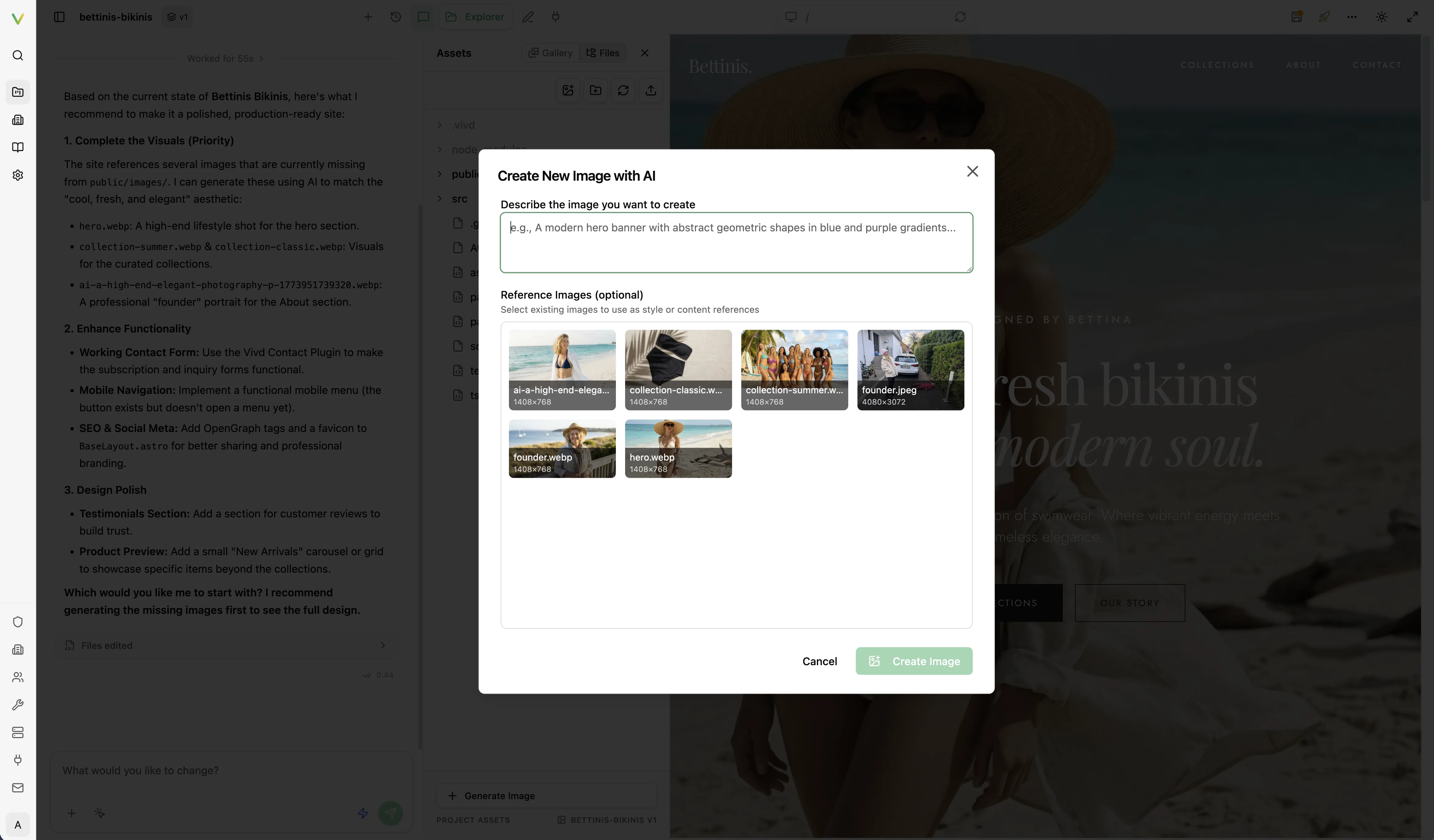
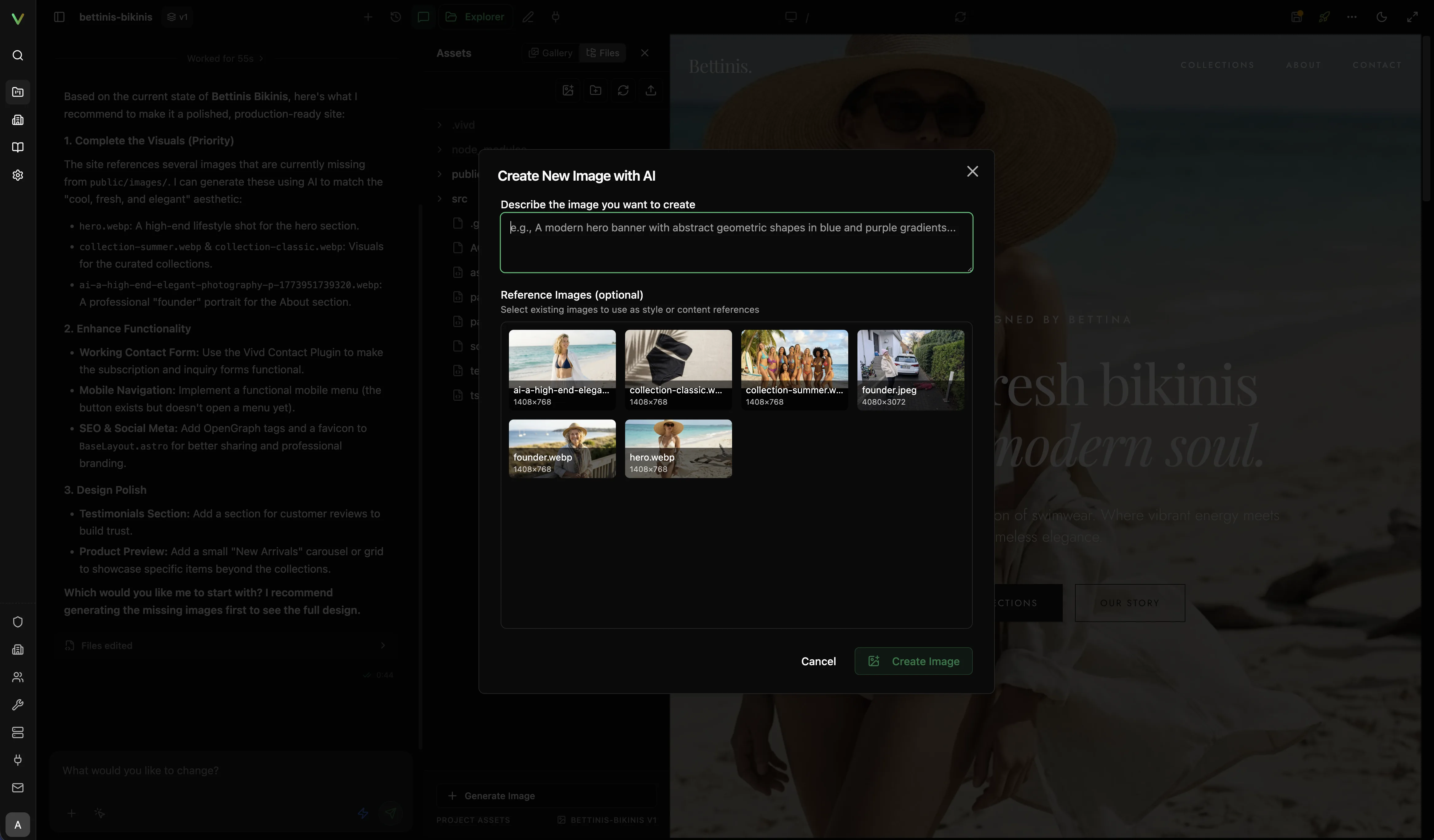
Images Vivd creates appear directly in the chat, including when you reopen it later. Click an image to open the full image viewer, or choose Show in Content to select that image in the media library. Creating an alternative does not automatically put it on your page; ask Vivd to apply it when you are ready.
Vivd can also link to an existing image, document, or source file. Media links open the matching item in Content; source links open the file editor.
In Content, the selected image preview uses the original image and shows its original dimensions. Click the picture or Expand to open the viewer. Edit with AI and Replace… sit below the preview. The replacement dialog explains which collection entries will change before you choose a file. Download and Ask the assistant are available in the image’s … menu.
“Used in” counts collection entries. Images used directly in page or component code may also be in use; those references are not included in that count or changed by the replacement action.
Video clips
Vivd can turn your website’s images into short video clips, for example a hero image that moves gently in a loop, or a camera move from one image into another. Each clip is 8 seconds long, has no sound and costs 4 Credits. Video clips are part of Pro.
Vivd never makes a clip on its own. Before each clip, the chat shows a card titled Generate a video clip · 4 Credits with the first and last image, the motion Vivd will ask for, and your current balance. Nothing happens until you choose Allow · 4 Credits. Choose Don’t allow and no clip is made and nothing is charged. If your balance is below 4 Credits, the card says Not enough Credits and offers Buy Credits instead.
On the Free plan, Vivd tells you that video clips are part of Pro and offers a version with still images instead. If a card appears, it says Video clips are part of Pro and offers Upgrade to Pro in place of Allow. Vivd makes no clip and charges nothing.
Credits are used only when the finished clip is saved to your website. If a clip cannot be made, you are not charged. Making a clip usually takes a few minutes; Vivd makes one clip at a time, and each new or repeated clip asks for your Allow again.
Finished clips play directly in the chat and are saved with your website’s media, so Vivd can place them on the page. Ask Vivd to use a clip where you want it.
Motion sites
A motion site is edited like any other website. Change its texts and pictures in the preview or in Content, or ask Vivd to change a scene or to replace a single clip. A new clip asks for your Allow and costs Credits as described above.
For scheduled Astro content, import visibilityField from
./lib/cms/visibilityField in src/content.config.ts and add
visibility: visibilityField() to the collection schema. Use
visibilityField({ newEntriesStartHidden: true }) when new entries should
start hidden. If Vivd cannot read this choice in the schema, new entries start hidden
and vivd cms validate names the field and its line. The file keeps the value; schema defaults are not supported.
Only the exact top-level key visibility controls the schedule. Write dates
as YYYY-MM-DD without quotes; a time of day hides the entry. Data files are
entries under src/content/ or in a folder or file named as plain text in the
content config, so write loader folders as plain text.