
Publish Your Site
Publishing is the handoff from draft work inside Studio to the domain your visitors use.
If your site is already live, the same flow is how you update it: make changes in Studio, then publish again so the live domain receives the newer version.
If you ask Vivd in the chat to publish instead of using the publish dialog, Studio pauses for your approval before risky steps such as republishing, unpublishing, or starting a full checklist rerun.
The chat flow mirrors the dialog: check vivd publish status, inspect vivd publish targets, then publish the latest saved version.
A “queued” or “accepted” response means the operation will continue in the background; it does not mean the website has finished publishing. Check the publish dialog or vivd publish status for the latest job state and any error. The same applies to unpublishing and domain changes.
If your entries have scheduled dates, Vivd checks that the prepared pages still match those dates before publishing. If you see “We couldn’t check the site’s date and time zone. Please try again.”, nothing new goes live. Try publishing again.
A scheduled change shows up when you publish a new version after its date.
How to update a live site
- Open the site in Studio and make your changes.
- Click the green rocket in the top-right toolbar to open the publish dialog.
- If the dialog shows Save changes, click it first. This creates the latest saved version that publishing can use.
- Review the checklist and fix anything that should not go live yet.
- Click Publish latest. Vivd prepares your saved changes and publishes them automatically.
- You can close the dialog and keep working while publishing finishes.
That last step republishes the site with your latest saved changes. In other words, updating an already-live site still uses the normal publish flow.
Before you publish
- Review the latest draft in Studio.
- Confirm that the important pages, sections, and assets are present.
- Check plugin-related setup such as forms or analytics.
- Make sure the target domain is the one you intend to use.
If the target domain itself is unclear, blocked, or still unverified, see Domains & Publish Targets.
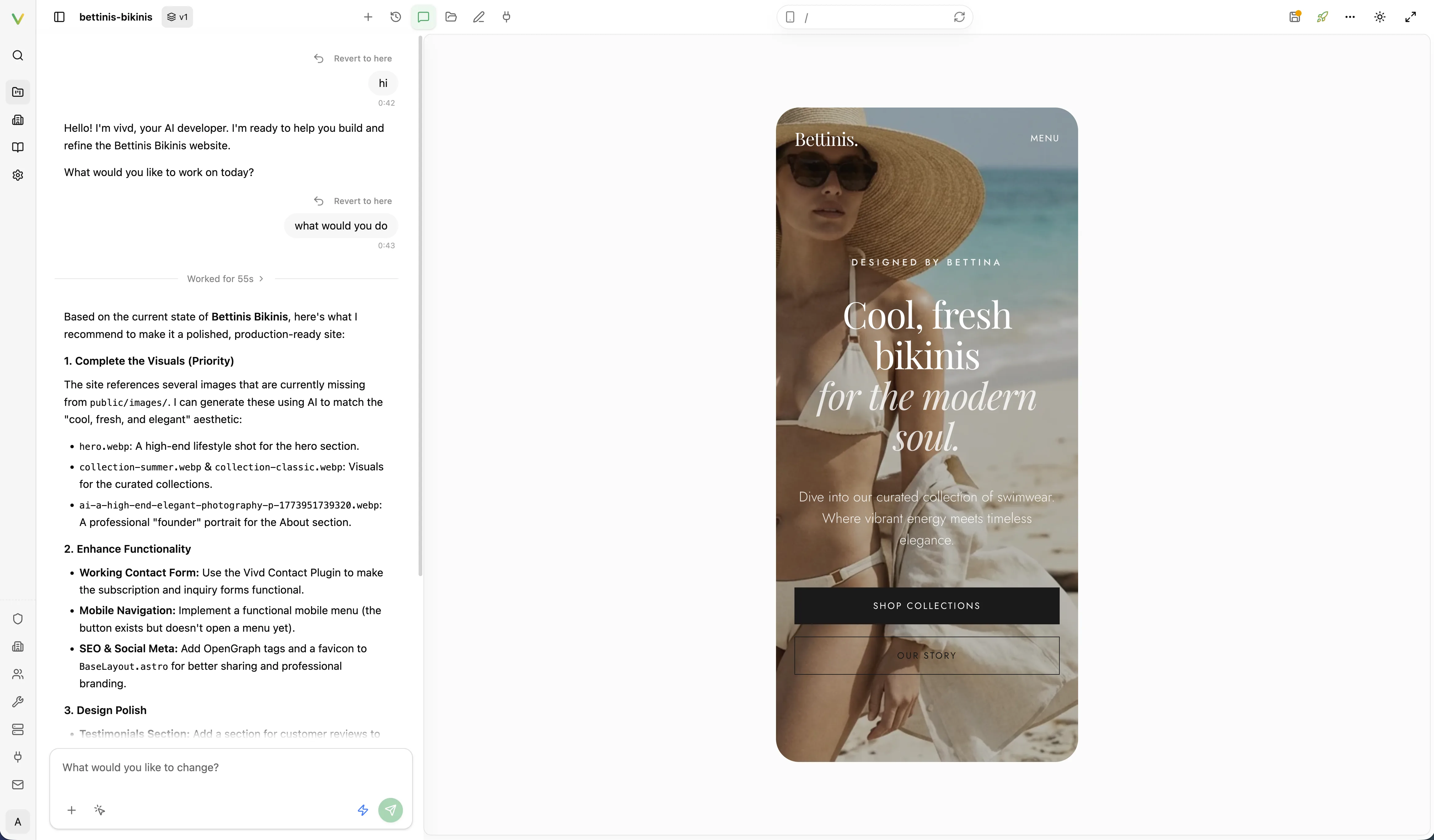
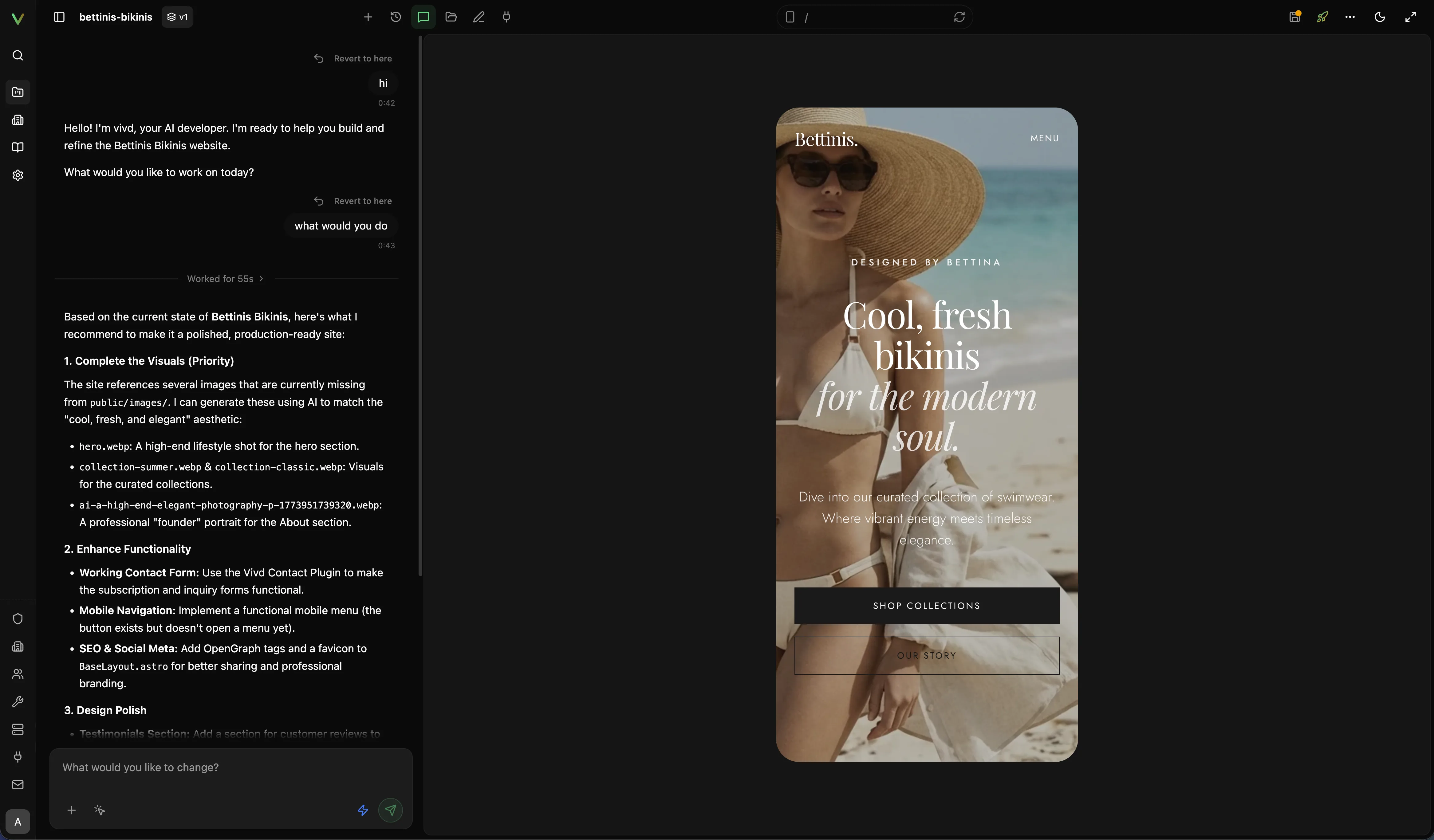
Final QA before publish
Use the last review pass to confirm more than just the main desktop hero.
- Check the draft on mobile as well as desktop.
- Re-test navigation, CTAs, and any form flow the live site depends on.
- Confirm contact details, footer content, and other launch-facing details.
- Confirm the page title, description, and share-preview image are intentional, especially
og:image, so shared links do not fall back to a generic logo. - Re-check plugin setup if forms or analytics matter for the launch.
- Confirm that the published content, legal pages, privacy notices, cookie choices, claims, offers, and rights to assets are your responsibility and are ready for real visitors.
- Publish only after this pass matches what you actually want visitors to see.
What the publish flow includes
- Previewing your website’s current state.
- Saving the latest Studio changes so they become a publishable version.
- Reviewing the pre-publish checklist.
- Confirming the target domain.
- Publishing the selected version automatically in the background.
For the domain registration, verification, and allowlist side behind that target-domain field, read Domains & Publish Targets.
What the checklist is for
The pre-publish checklist is there to catch obvious launch issues before a version goes public. Use it to verify that the site is complete enough for real traffic, not just internally “good enough.”
Treat it as your last quick review before you click Publish site. A useful checklist pass usually includes:
- confirming that the main pages and sections are present
- checking title/description/share-preview metadata such as
og:image - checking forms, analytics, or other plugin-related setup
- reviewing contact details, buttons, and navigation
- reviewing legal pages, privacy/cookie choices, claims, offers, and asset rights
- confirming the content you want to publish is the latest saved version
If you make more edits after the checklist run, run through the final review again before publishing.
Saving and saved versions
Publishing uses saved Studio state, not half-finished local edits.
- If the dialog says your draft has changes that are not in a saved version yet, click Save changes first.
- Saving creates the latest saved version of your work.
- If Studio says you are viewing an older saved version, switch back to the latest one before publishing so the live site matches what you are looking at.
This is why the publish dialog may show a save action before it lets you continue.
Publishing in the background
Click Publish (or Publish latest for a live site) after saving and reviewing your changes. Vivd queues the request and handles any preparation automatically. You do not need to wait before clicking Publish or keep the dialog open.
The dialog shows Publishing your site until the request finishes. Reopen it to check progress. Your existing live site stays available while the update is prepared. If publishing fails, the dialog shows an error so you can check your changes and try again.
Publishing from Studio chat
Vivd has the same publish flow, with an approval step in front of every action that changes the live site. Studio shows you the exact action and runs it only after you approve it.
- Publishing uses the
vivd_publishtool. It saves through Vivd’s server-side Git authority, prepares the saved version, shows you the approval, and deploys after you accept. Vivd does not runvivd publish deployfrom the Studio shell. - Changing your website address, unpublishing the site, and starting a full checklist pass are approval-gated as well.
- Read-only inspection needs no approval:
vivd publish statusfor readiness of the current saved version,vivd publish targetsfor eligible domains, andvivd publish check-domain <domain-or-vivd-name>for one specific address. vivd publish checklist showreports the current checklist state without starting a run.
Approving an action starts it. A queued or accepted response is not a finished publish, so confirm with publish status before telling anyone the site is live.
Republish flow
After a site is live, you can return to Studio at any time, refine your website, save the latest version, and click Publish latest. Vivd handles the rest.
Expected result
The live domain serves the published version, while Studio remains your editing environment for future changes.
Project files that are not part of the website stay private: guides and notes for
coding agents (AGENTS.md, CLAUDE.md, GEMINI.md, .cursor/, .claude/), the
project README.md, package and build settings (package.json, lock files,
astro.config.*, node_modules/) and hidden files. Files such as robots.txt,
sitemap.xml and .well-known/ are published as usual.
On the Free plan, published websites show a small “Made with Vivd” link in the bottom-right corner. Any paid plan removes it from all of your websites without publishing again. See Domains & Publish Targets.
Vivd hosting keeps published email addresses visible and ordinary email links usable without JavaScript. If you use your own proxy or CDN, its email protection settings can affect how those addresses appear.
If something feels off
Use Troubleshooting if the live domain does not match what you expected, if the domain setup is unclear, or if a publish looks incomplete.
Saved changes and publish status
Saved versions shows whether there are changes to save. A failed status check shows a retry action rather than claiming your work is saved. Saving creates a version; publishing puts that version on the live addresses. A saved version can be queued for publication while Vivd finishes preparing it.
The publish dialog refreshes while open. Up to date means the latest saved version matches the published one and Studio has no unsaved edits and nothing unaccounted for.
When republishing through chat, Vivd checks the existing destinations and keeps
them without asking you to name the site again. The publish tool still presents
its approval before deployment. Registered custom hosts keep their exact address:
for example.com, Vivd serves your site at www.example.com and sends visitors
who type example.com there. The destination list names those redirects too.