
Publish Your Site
Publishing is the handoff from draft work inside Studio to the domain your visitors use.
If your site is already live, the same flow is how you update it: make changes in Studio, then publish again so the live domain receives the newer version.
How to update a live site
Section titled “How to update a live site”- Open the site in Studio and make your changes.
- Click the green rocket in the top-right toolbar to open the publish dialog.
- If the dialog shows Save changes, click it first. This creates the latest saved Studio snapshot that publishing can use.
- Review the checklist and fix anything that should not go live yet.
- Wait until Vivd finishes preparing the latest build for publishing.
- Click Publish site once the button becomes available.
That last step republishes the site with your latest saved changes. In other words, updating an already-live site still uses the normal publish flow.
Before you publish
Section titled “Before you publish”- Review the latest draft in Studio.
- Confirm that the important pages, sections, and assets are present.
- Check plugin-related setup such as forms or analytics.
- Make sure the target domain is the one you intend to use.
If you are self-hosting, confirm that the install-level host and HTTPS setup are already correct in Instance Settings before treating a publish issue as a project-only problem. If the target domain itself is unclear, blocked, or still unverified, see Domains & Publish Targets.
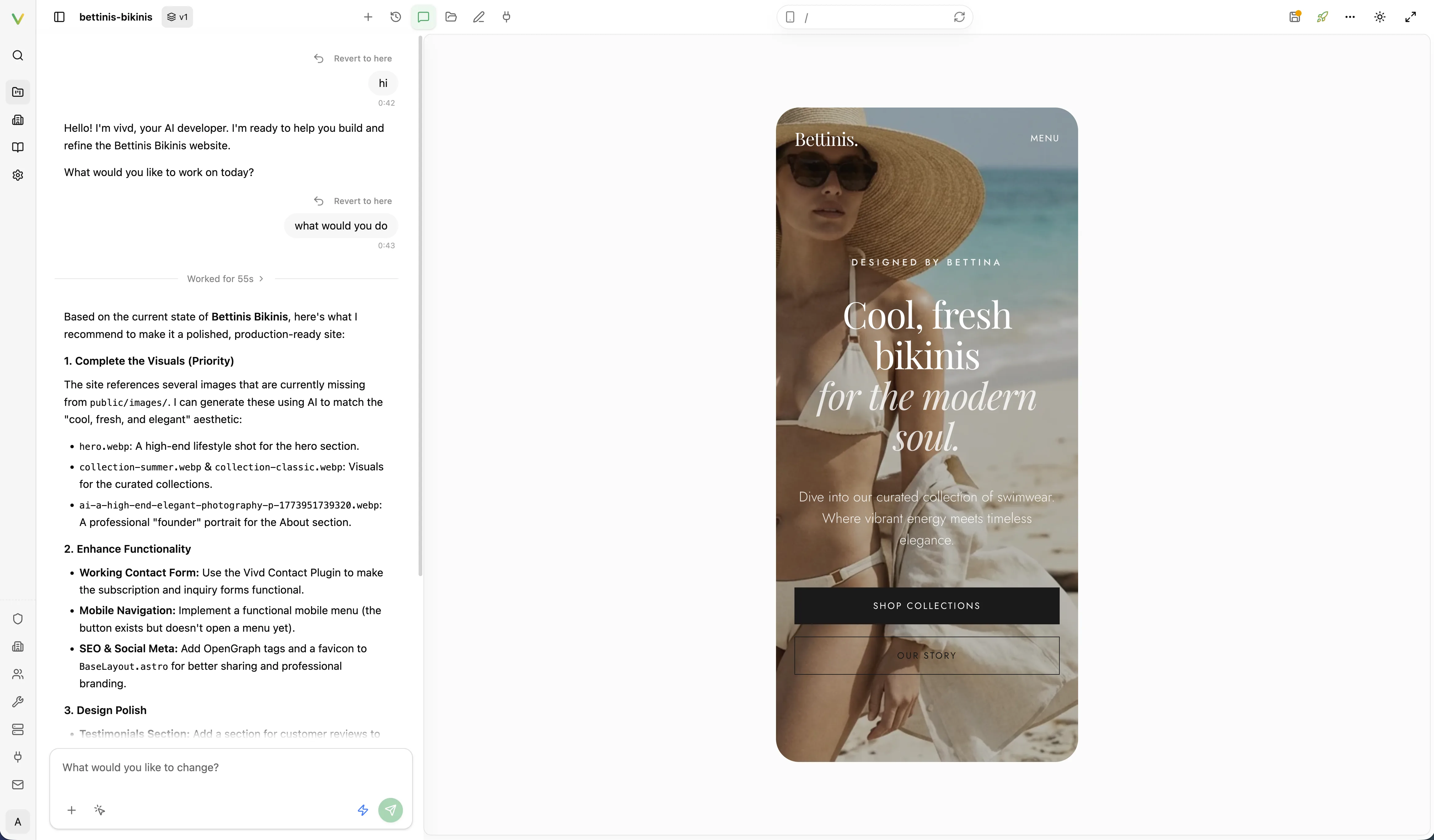
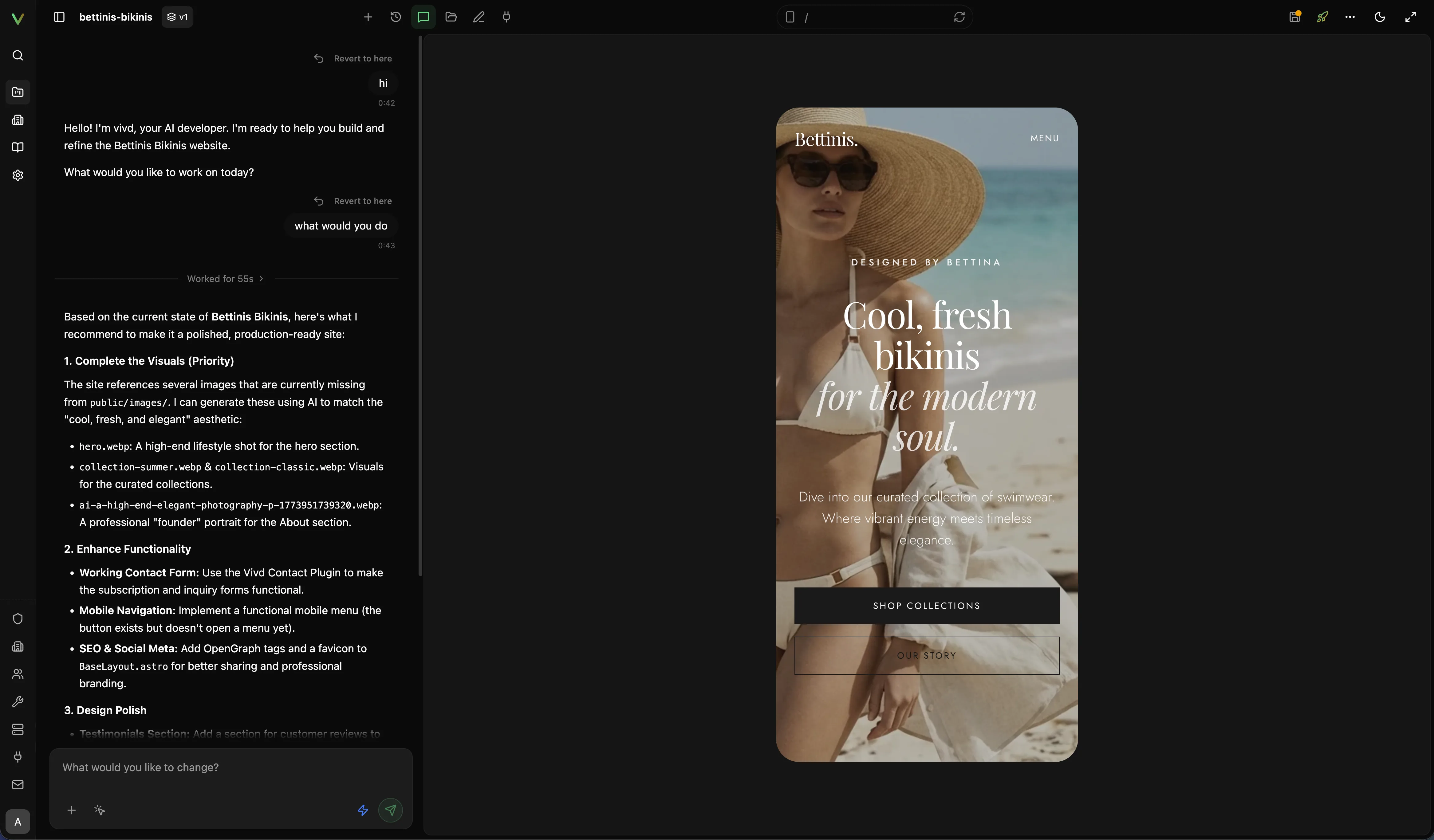
Final QA before publish
Section titled “Final QA before publish”Use the last review pass to confirm more than just the main desktop hero.
- Check the draft on mobile as well as desktop.
- Re-test navigation, CTAs, and any form flow the live site depends on.
- Confirm contact details, footer content, and other launch-facing details.
- Re-check plugin setup if forms or analytics matter for the launch.
- Publish only after this pass matches what you actually want visitors to see.
What the publish flow includes
Section titled “What the publish flow includes”- Previewing the current project state.
- Saving the latest Studio changes so they become a publishable snapshot.
- Reviewing the pre-publish checklist.
- Waiting for the latest build/artifacts to finish preparing.
- Confirming the target domain.
- Pushing the selected version live.
For the domain registration, verification, and allowlist side behind that target-domain field, read Domains & Publish Targets.
What the checklist is for
Section titled “What the checklist is for”The pre-publish checklist is there to catch obvious launch issues before a version goes public. Use it to verify that the site is complete enough for real traffic, not just internally “good enough.”
Treat it as your last quick review before you click Publish site. A useful checklist pass usually includes:
- confirming that the main pages and sections are present
- checking forms, analytics, or other plugin-related setup
- reviewing contact details, buttons, and navigation
- confirming the content you want to publish is the latest saved Studio snapshot
If you make more edits after the checklist run, run through the final review again before publishing.
Saving and snapshots
Section titled “Saving and snapshots”Publishing uses saved Studio state, not half-finished local edits.
- If the dialog says you have unsaved changes, click Save changes first.
- Saving creates the latest snapshot of your work for the publish pipeline.
- If Studio says you are viewing an older snapshot, switch back to the latest one before publishing so the live site matches what you are looking at.
This is why the publish dialog may show a save action before it lets you continue.
When the Publish Site button becomes available
Section titled “When the Publish Site button becomes available”After saving, Vivd may need a little time to prepare the latest changes for publishing. During that time the dialog can show messages such as build in progress or preparing your latest changes.
Wait until:
- the latest snapshot has been prepared
- the publish checks are no longer blocking you
- Publish site is enabled
Then click Publish site to push the update live.
Republish flow
Section titled “Republish flow”After a site is live, you can return to Studio at any time, refine the project, save the latest snapshot, and publish again when the new version is ready.
Expected result
Section titled “Expected result”The live domain serves the published version, while Studio remains your editing environment for future changes.
If something feels off
Section titled “If something feels off”Use Troubleshooting if the live domain does not match what you expected, if the domain setup is unclear, or if a publish looks incomplete.