
Work with your own coding agent
You can keep a Vivd website open in Studio and let a coding agent on your computer
work on it at the same time. The agent edits a normal git folder, pushes its commits
with the vivd command, and Studio shows each change in the Vivd tab as soon as it
lands. Your Studio chat, saved versions, and publishing stay where they are.
Start from Studio
Open the website in Studio, choose the More actions menu (the three dots at the top right), then Connect a coding agent. On a phone it is in the menu at the top right.
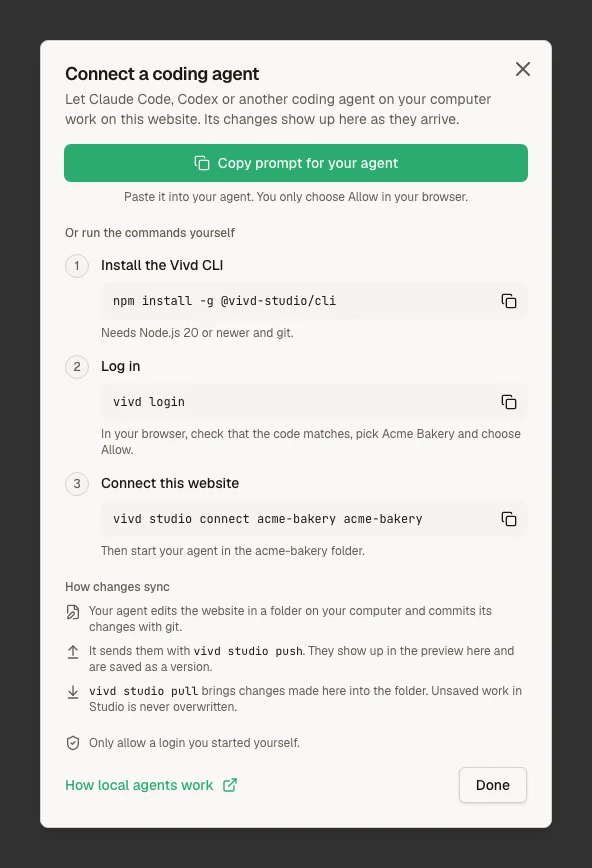
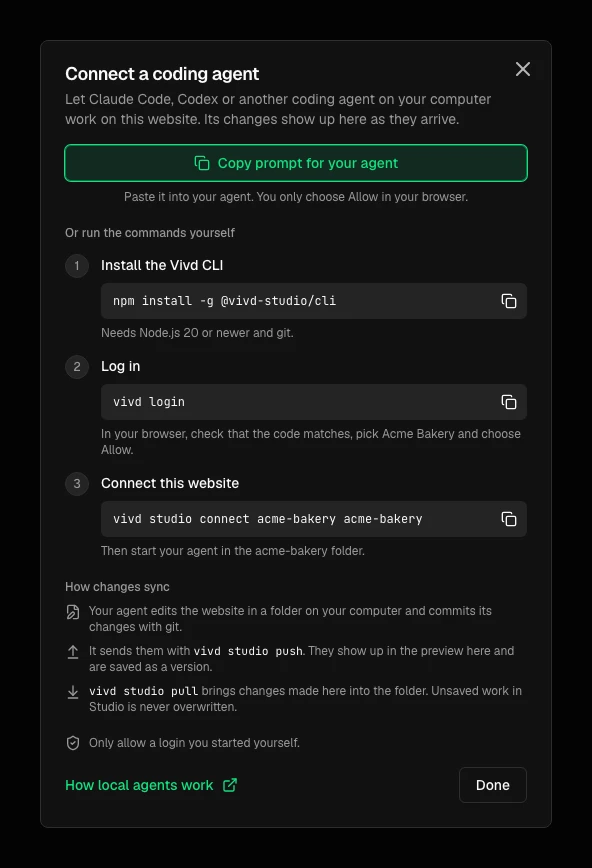
- Choose Copy prompt for your agent.
- Start Claude Code, Codex or another coding agent in your projects folder and paste the prompt.
- The agent installs the
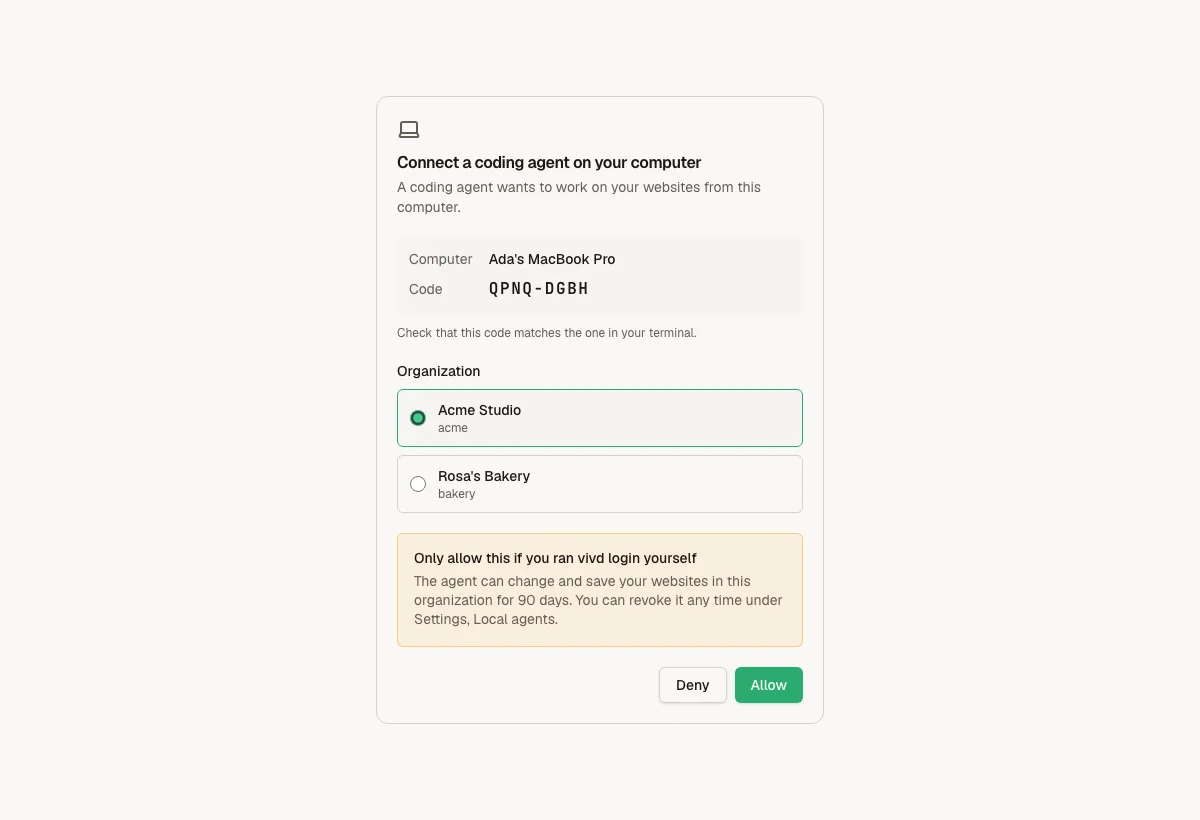
vivdcommand, logs in and shows you a short code. Your browser opens: check that the code matches, pick the organizations it may work in and choose Allow. Only allow a login you started yourself. - The agent downloads the website into a folder named after it, reads the guide there and starts working. Its changes show up in Studio.
The dialog also sums up how changes sync: the agent commits in the folder,
vivd studio push sends the commits to Studio, and vivd studio pull brings changes
made in Studio back. The work loop has the details.
Allowing the login is the only step you do yourself. You need Node.js 20 or newer and git on your computer.
Working with your own coding agent is part of Pro, because connecting a website
downloads its files, just like Download as ZIP. On the Free plan the dialog shows
Upgrade to Pro instead, and vivd studio connect stops before anything is
downloaded and prints the address of the upgrade page. A plan you canceled keeps
working until the end of the period you paid for.
Set it up by hand
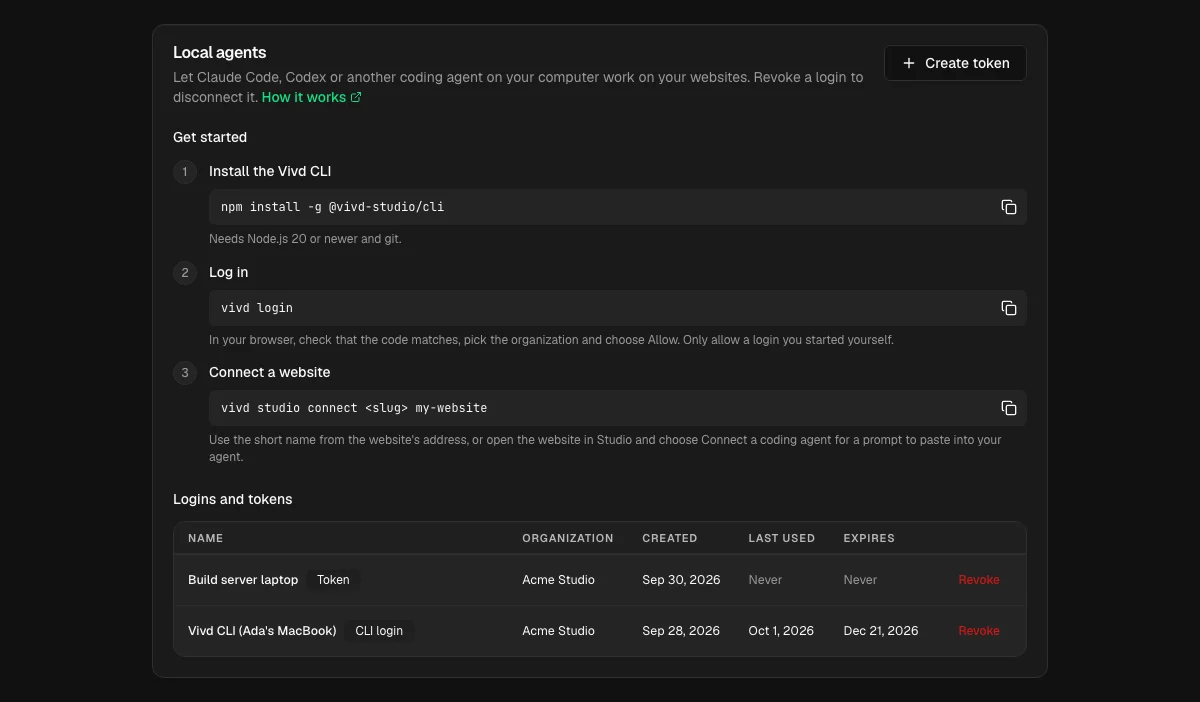
The dialog also lists the three commands, each with a copy button. Account settings > Local agents shows the same steps.
Your agent can run vivd reference to list what Vivd can do, then
vivd reference <key> to read when to use it, its limits, and the steps available
from your computer. Add --json for structured output. This works offline and
uses the public capability summaries included with your CLI version. It does not
include internal skill instructions.
Install and log in
npm install -g @vivd-studio/cli
vivd login
vivd login prints a short code and opens your browser. Check that the code matches,
pick the organizations, and choose Allow. Only allow a login you started yourself.
Your terminal then shows Logged in to <organization>.
If you are a member of several organizations, tick each one the agent may work in, or choose Select all. A longer list has a search field. The login covers exactly the organizations you ticked, for 90 days, and your terminal lists them.
- On a computer without a browser, run
vivd login --no-browserand open the printed address on another device. - For scripts, create a personal token in Account settings > Local agents and run
vivd login --token <token>. The token is shown only once. vivd logoutends the login on this computer and removes it from Account settings. A token added withvivd login --tokenstays valid until you revoke it in Account settings.
Connect a website
Use the website’s short name (its slug, shown in the address of the project):
vivd studio connect <slug> my-website
cd my-website
This opens the website in Studio if it is not open yet, downloads the current files
into my-website, and adds a short guide for coding agents to AGENTS.md (plus a
CLAUDE.md that points to it). Both files stay in the project and are never published
with your website. Run it in an empty folder or inside an existing copy of the same
website. Running it again is safe and refreshes the guide.
When your login covers several organizations, vivd studio connect finds the website
in whichever one has it. If the same short name exists in more than one, it lists them
and you choose with vivd studio connect <slug> --org-slug <organization>.
Open the Vivd tab with vivd studio open to watch your changes arrive.
The work loop
Start your coding agent in the folder. The guide tells it what to do, and you can use the same commands yourself:
vivd studio attachruns in the background and keeps Studio open while you work. It never opens a closed Studio: after your computer sleeps or Studio closes, attach pauses. It continues when you work in the folder again, and your nextvivdcommand opens Studio.- Edit files and commit them with git.
vivd studio pushsends your commits to Studio. It waits until the change is visible in the preview and saved as a version.vivd studio statusshows what Studio has, andvivd studio pullbrings in changes made in Studio, for example by the Vivd chat.
Check scheduled content
For a site with scheduled content, run vivd cms schedule in its folder to see
what is shown today and what changes next. vivd cms validate names unreadable
values and dates placed inside an item, where they are not applied.
Read vivd cms schedule --help before adding dates. An entry without visibility
is shown. When preparing an unfinished entry by hand, write
visibility: { show: hidden } or its schedule into the file.
Use vivd preview date <YYYY-MM-DD> to check a future day in the preview, then
vivd preview date today when finished. This changes only the preview.
vivd site timezone <zone> sets the site’s time zone, such as Europe/Berlin.
Editing in Studio at the same time
You can keep editing in Studio while the agent works in the folder. Change a text in
the Vivd tab, save it, and the agent’s next vivd studio push brings your saved
changes into its folder first, then pushes. Nothing is overwritten on either side:
your saves and the agent’s commits are both kept and joined by a merge.
The push lists what you changed, so the agent sees it:
Merged 1 Studio commit into this folder:
  modified de/index.html
Other-language versions of the changed pages:
  de/index.html
en/index.html (en) was NOT changed. Apply the equivalent change there.- Other languages. When a page you changed has versions in other languages, the
push and
vivd studio pullname them and say whether you changed them too. The agent is told to apply the same change in the other language; nothing is translated automatically. Vivd finds the other versions from the website itself: thehreflanglinks in an HTML page, the language files inlocales/orsrc/locales/, and matching files in language folders undersrc/pages/andsrc/content/. Languages that share one file, such as a single page template for all languages or a content entry with a field per language, are not listed. - The same lines changed on both sides. The push stops and names the files. The
agent resolves them in the folder, keeping both changes, runs
git addandgit commit --no-edit, then pushes again.git merge --abortgoes back to the agent’s own commits. - Uncommitted changes in the folder. The push merges only into a clean folder. The agent commits its changes first, then pushes again.
- Edits you have not saved yet. They stop a push until you save them in Studio,
or the agent saves them with
vivd studio save -m "<message>". The next push merges them in.
vivd studio push --no-merge turns the merge off: the push is refused instead when
Studio has saved changes the folder lacks.
vivd --version prints the installed version of the command.
To check the result, vivd browser screenshot / saves a picture of the page into
.vivd/local-agent/captures/, and vivd preview status shows build errors. After a
change to dependencies or the website’s configuration, the preview restarts: the push
waits for the restart and says what restarted, so a screenshot right after it shows the
new version. Images further down the page may still be loading in a screenshot taken
immediately.
When a push is refused
Studio never overwrites work you have not saved. When a push is refused, the command explains why and what to do next:
- Unsaved edits in Studio. The command lists the files. Save them in the Vivd tab,
or keep them with
vivd studio save -m "<message>", which saves them and brings them into your folder. The next push merges them in. To drop them instead, usevivd studio discard. Discard shows the files and asks before it removes anything;vivd studio discard --yesskips the question for scripts and agents. A discard cannot be undone. - Saved changes in Studio that conflict with yours. The push merges saved Studio changes on its own and stops only when both sides changed the same lines. See Editing in Studio at the same time.
- Vivd is working. While the Vivd chat is changing the website, wait for it to finish and push again.
- Too large. A single push is limited in size. Push fewer changes at once, and add
large images with
vivd media upload.
Files that Vivd keeps up to date on its own, such as the list of images in
src/vivd/media-index.json, never count as unsaved edits and never stop a push.
If vivd studio status says the saved version is not open in Studio yet, a newer
version was saved from somewhere else while Studio was open. Studio loads it the next
time it starts, and pushes from your folder work again after that.
If the change breaks the preview, the push ends with the preview’s error within a few seconds. Studio keeps the change and saves it, so your agent fixes it with another commit and pushes again. Pushing the same commit again only checks the preview once more.
What needs the Vivd tab
Some actions need you in the Vivd tab. The agent cannot run them from your computer:
- publishing the website
- plugin licenses and plugin settings
- project actions
- support requests
When your agent tries one, the command answers with three short lines: what needs the Vivd tab, the address to open, and what to do there. Choose Publish in the toolbar, open Plugins, or ask Vivd in the chat.
Images and content
- Add images with
vivd media upload <file>. It stores the image in the website’s media library, registers it, and prints its sha256, a long code that names the image. Use that code as the image in a content entry or page and show it withCmsImage, for example<CmsImage src="<sha256>" alt="Team photo" />. The media folder itself stays in Studio and is not copied to your computer, so the printed path is for information only. Images committed with git alone are not registered. The media library takes images (JPEG, PNG, WebP, GIF, AVIF, SVG), MP4 videos, PDFs and web fonts; other files are refused. - Content entries live in
src/content/with their schema insrc/content.config.ts.vivd cms validatechecks them before you push. vivd plugins listandvivd plugins info <id>show installed plugins and the snippets they need.
Stop access
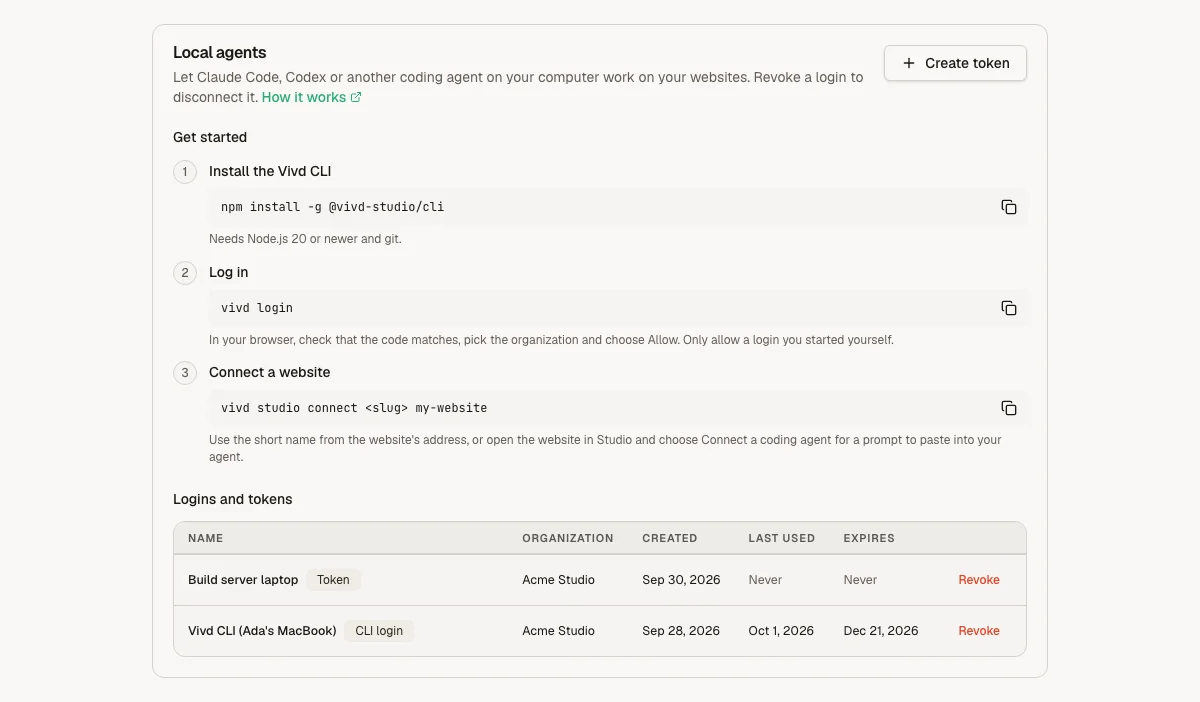
Everything a coding agent can do comes from your login. To stop it, open
Account settings > Local agents and revoke the login or token. The next command on that
computer asks for a new vivd login. vivd logout does the same for the login on the current
computer.
A login you allowed for several organizations appears once per organization. Revoke a
single row to end access to that organization only, or run vivd logout to end all of
them at once.
Exit codes
Scripts can react to the command’s exit code:
| Code | Meaning |
|---|---|
| 0 | Done |
| 2 | Not available here, or a wrong command |
| 3 | Refused, read the reason. With --json, refusal holds a Studio refusal and merge a merge that stopped (conflict, uncommitted_changes, merge_in_progress) |
| 4 | Needs the Vivd tab |
| 5 | Update needed: update the CLI, or choose Restart Studio in the Vivd tab |
| 6 | Log in again |
| 7 | Studio is busy or still starting, try again shortly |